Your robots
Public Chat vs Staff Assistant, every what-it-can-do switch explained, and your first phone robot start to finish.
about 12 minutes
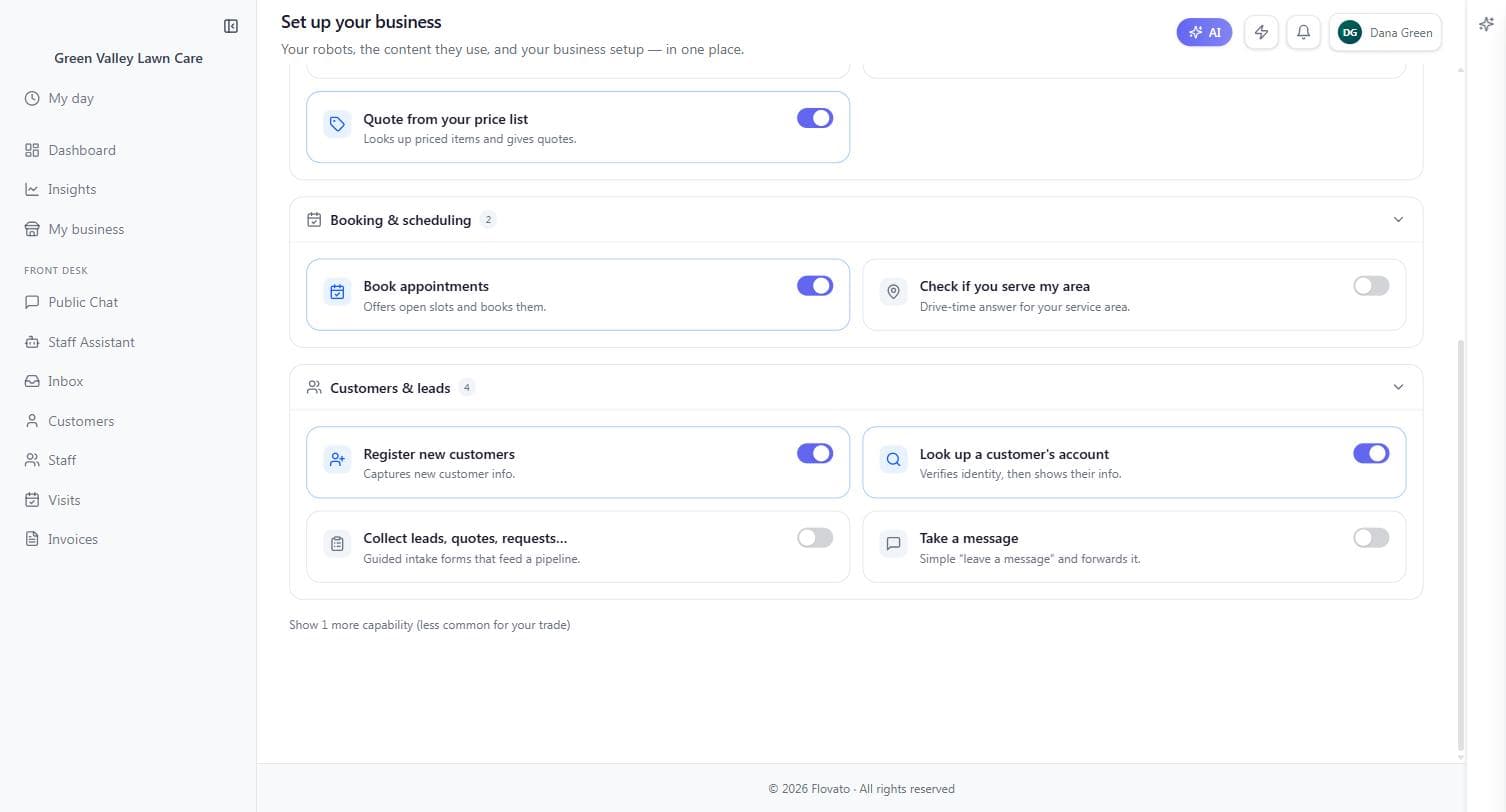
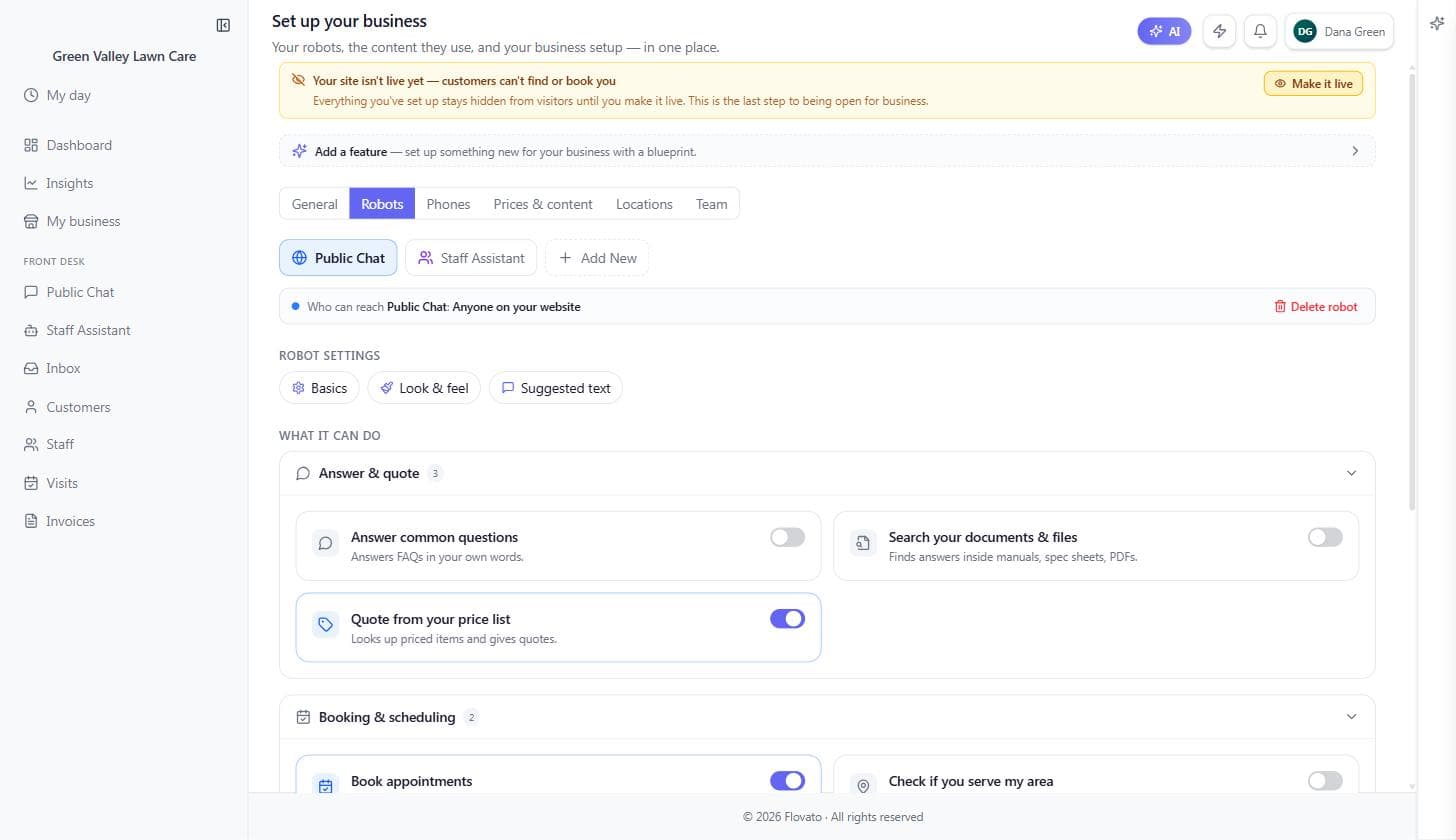
The Robots tab in My business lists your AI helpers. Public Chat talks to anyone on your website; the Staff Assistant is private — it knows your business data and answers only signed-in team members. Pick a robot with the pills at the top; "Who can reach" under the pill row always tells you who a robot talks to, and Add New creates more when you need them.
Under "What it can do" you'll find plain-English switches grouped by job. Your blueprint turns on the essentials; flip anything on or off whenever you like, and the change hits your live chat immediately.
Just you: Solo, the Staff Assistant is your back-office sidekick — ask it about your own schedule, prices, and unpaid invoices from the truck.
With a crew: With a crew, every signed-in member can use the Staff Assistant, and what each person can see follows the roles you set on the Team tab.
Green Valley's blueprint switched on "Quote from your price list" and "Book appointments" from day one — that's all it takes for the chat to quote real prices and fill the calendar.
The kinds of robots
Chat robots are just the start. Public Chat talks to website visitors; the Staff Assistant is the private one for your team; and phone robots answer real phone calls and texts — an AI receptionist on a real number, speaking with a voice you pick.
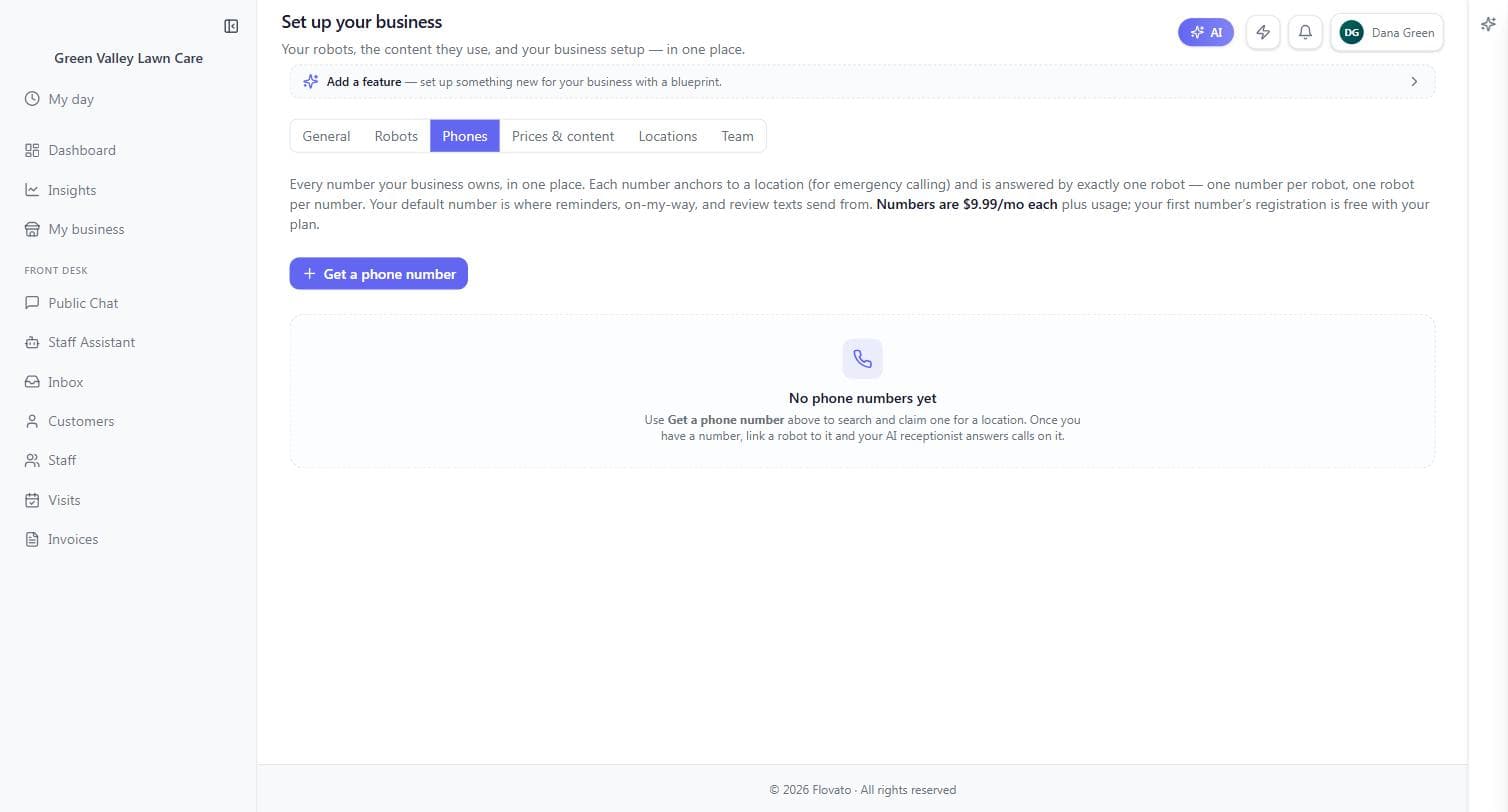
Phone numbers live on the Phones tab of My business. Each number anchors to one of your locations (that's what makes emergency calling work), is answered by exactly one robot, and your default number is what reminders, on-my-way texts, and review requests send from. Your paid plan covers its included line(s); numbers beyond those are $12.99 a month each, plus usage, and every claim carries a one-time $5.99 new-number fee. "Get a phone number" on that tab searches available numbers for your area and claims one — link a robot to it and your AI answers calls on it.
One more step if you want the robot texting customers: business texting on a new number needs a one-time carrier registration (the "Business texting" section on the same Phones tab walks you through it — $24.99, charged once). Calls work the moment you claim; texting turns on when the carrier registry approves you, usually fast for sole proprietors.
Just you: A phone robot is the solo operator's biggest unlock — calls get answered while you're on a mower, and the message or booking is waiting when you stop.
With a crew: With a crew, the phone robot catches what the office can't — after-hours calls, overflow when lines are busy — and everything lands in the same inbox and calendar.
Phone robot, step 1 — verify your business (one minute)
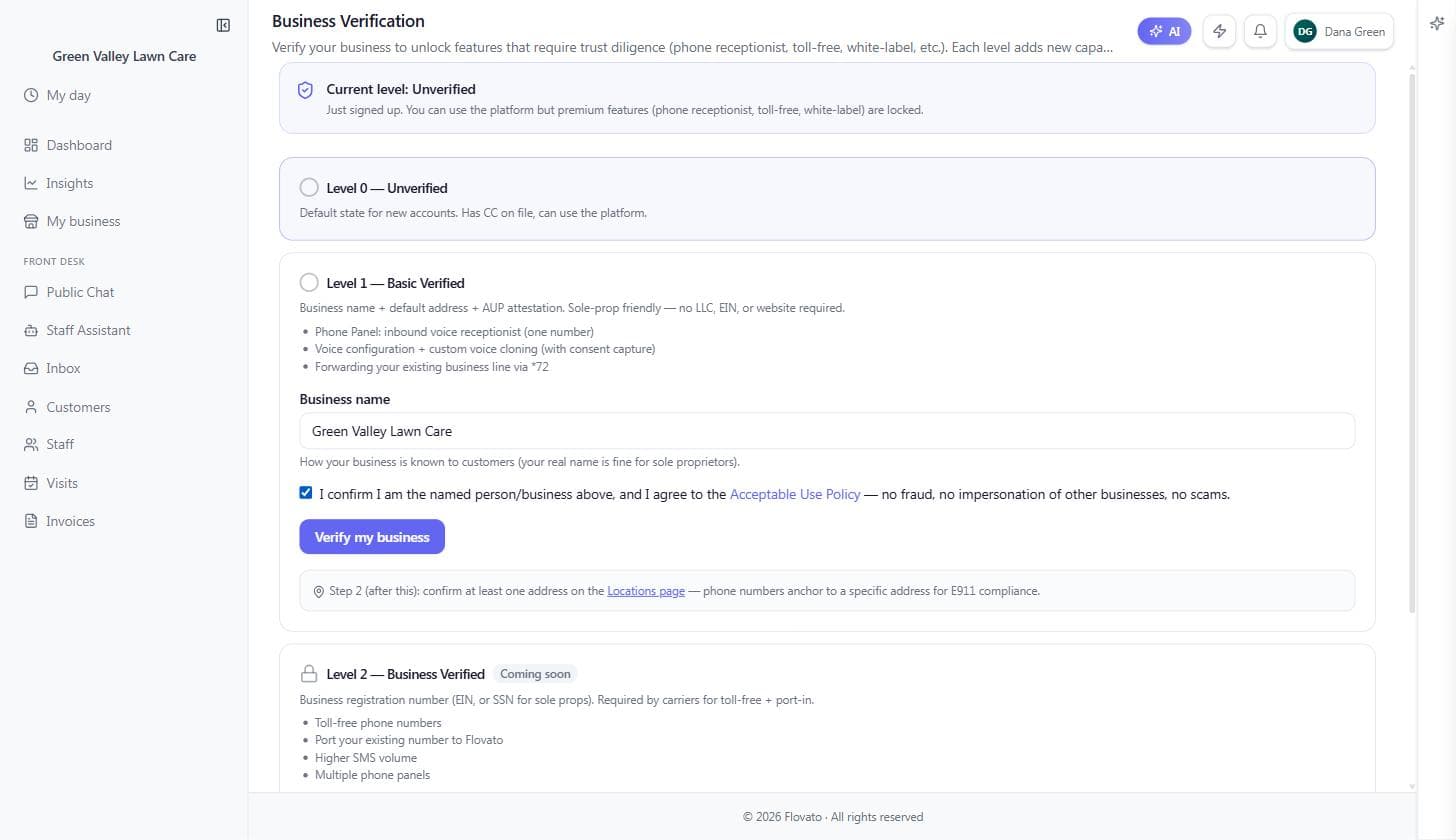
Before Flovato will put a real phone number in your hands, it asks for two quick trust steps — and every screen along the way tells you which one is missing and links you straight to it. Open the Phones tab and hit "Get a phone number": the price shows first ($12.99/mo per number, plus a one-time $5.99 new-number fee), then an amber note says "One step first: verify your business."
That link lands on Business Verification. Level 1 is deliberately sole-prop friendly: your business name as customers know it (your own name is fine — no LLC, EIN, or website required) and one checkbox agreeing to the Acceptable Use Policy. Click "Verify my business" and you're Basic Verified on the spot.
Step two is confirming an address: the verification page points you to Locations, where your main location has a "Confirm address" button — one click if what you entered in the wizard is right. Numbers anchor to a confirmed address because that's what makes emergency (911) calling work from your line. It's not bureaucracy for its own sake.
The dashboard also nudges you here: the "Give your business a phone line" banner up top jumps straight into this flow.
Just you: Verifying as one person takes exactly as long as reading this paragraph — your name, one checkbox, one address click.
With a crew: Verification is owner-level trust info — do these two steps yourself before handing the phone project to your office manager.
Phone robot, step 2 — claim your number
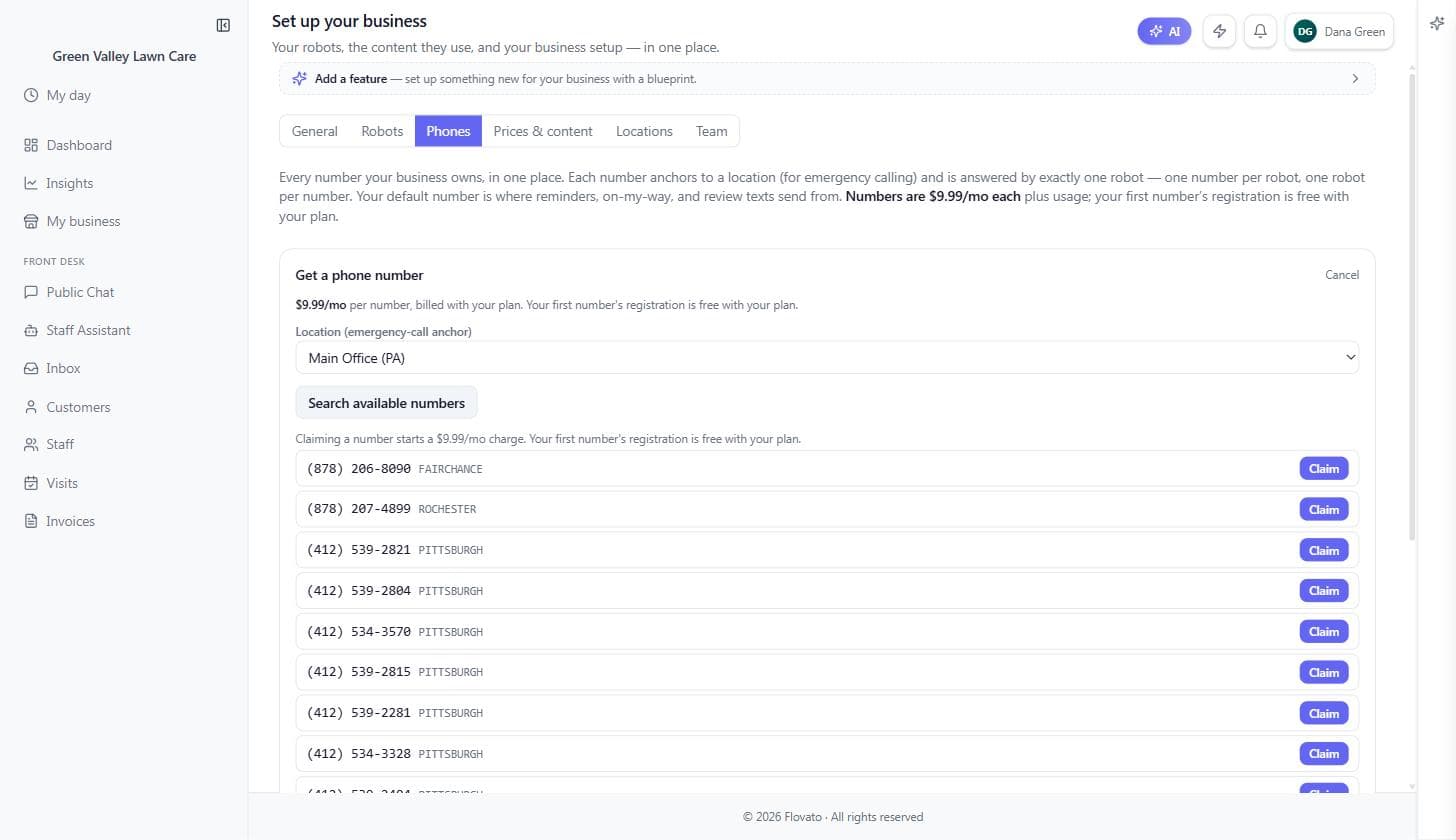
Back on the Phones tab, "Get a phone number" now opens for real: pick which location the number anchors to (that's the emergency-call anchor), hit "Search available numbers," and real numbers from your area come back — Green Valley's search from Latrobe returned (878) and (412) numbers from Fairchance, Rochester, and Pittsburgh, each with a Claim button.
The cost is restated right above the results before you commit: claiming starts the $12.99/mo charge, plus a one-time $5.99 new-number fee on your next statement. Pick the one you like and claim it — the number appears in your list on this tab, marked as your default sender if it's your first.
Your area code follows your location's state. The number stays yours as you grow — you can even re-anchor it to a different location later, and it keeps its area code like a cell number that moved with you.
Phone robot, step 3 — create the robot and link it
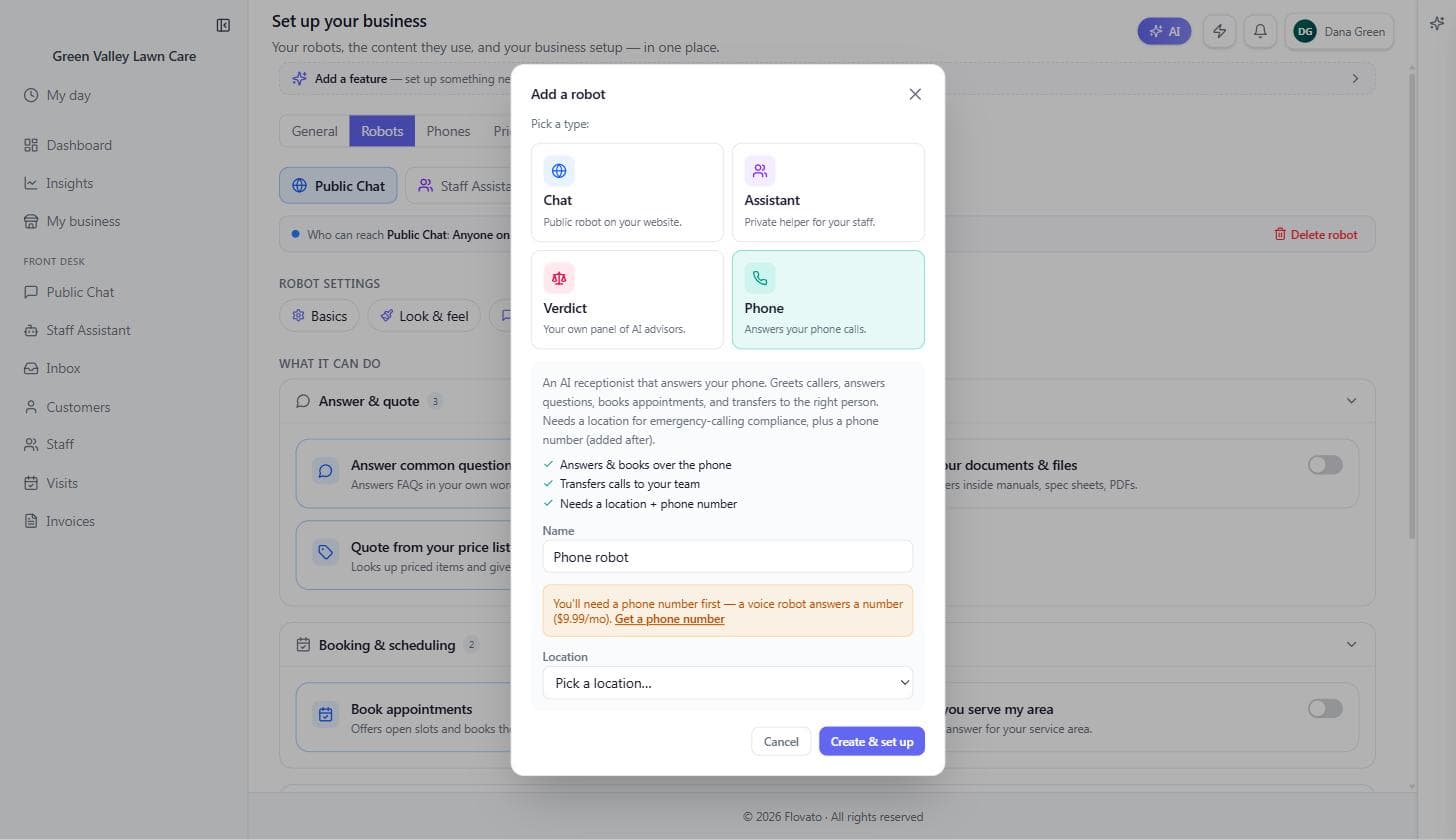
Now the robot itself: on the Robots tab, "Add New" opens a type picker — choose Phone ("Answers your phone calls."). Give it a name, pick its location, and "Create & set up." The dialog keeps you honest about order: if you jumped here before claiming a number, an amber note says "You'll need a phone number first — a voice robot answers a number" and links you back to step 2. One robot per number, so robots never outnumber your lines.
Link the two on the Phones tab: every number row has an "Answered by" dropdown — pick your new robot and calls to that number now reach it. The robot's own pill row (click it on the Robots tab) holds the rest: Voice picks how it sounds, Greeting sets the first thing callers hear, "Test it" lets you talk to it right in the browser without spending a call, and Health shows green only when the number, robot, and emergency address are all actually wired at the carrier — if it's green, it's true.
Just you: Name it something you'll recognize on your phone bill and in call logs — "Front desk" beats "Phone robot #1" when you're skimming at the end of a long day.
With a crew: The robot transfers callers to your team — set up your people on the Team tab (chapter 7) and it can hand off a live call to the right person.
The switches, group by group
Answer & quote is the talking side: "Answer common questions" answers from your FAQ knowledge sets (it lights up once you've added one), "Search your documents & files" answers from uploaded manuals and spec sheets, and "Quote from your price list" looks up priced items and gives real numbers.
Booking & scheduling holds "Book appointments" — the switch that offers open slots and books them — and "Check if you serve my area," which turns your service area from chapter 3 into a drive-time answer for "do you cover my street?"
Customers & leads is the front-desk side: "Register new customers" captures a new caller's info, "Look up a customer's account" verifies identity before showing anything private, "Collect leads, quotes, requests…" runs guided intake forms that feed a pipeline, and "Take a message" does exactly what it says and forwards it to you. The list is tailored to your trade — a "Show more capabilities" link at the bottom reveals the ones less common for your line of work.
A switch that's off isn't hidden from you, just from customers — you can read every capability's description before deciding, and flipping one on takes effect in your live chat immediately.