Fine-tune your business profile
The General tab — brand, hours, pricing, look & feel, and personality, each pill opened and explained.
about 8 minutes
Open "My business" from the left menu and click the General tab. This is your business identity in one place — Brand, Hours, Pricing, Look & Feel, and Personality, each behind a pill that opens an editor right there. Everything the wizard set lives here, ready to adjust.
Your AI answers customers from these details, so give them a quick once-over after setup. This tab is also where your site's live/hidden status shows — more on that in the last chapter.
Nothing here is one-shot: change your logo, reword your tagline, or shift your hours any time, and every robot picks the change up immediately.
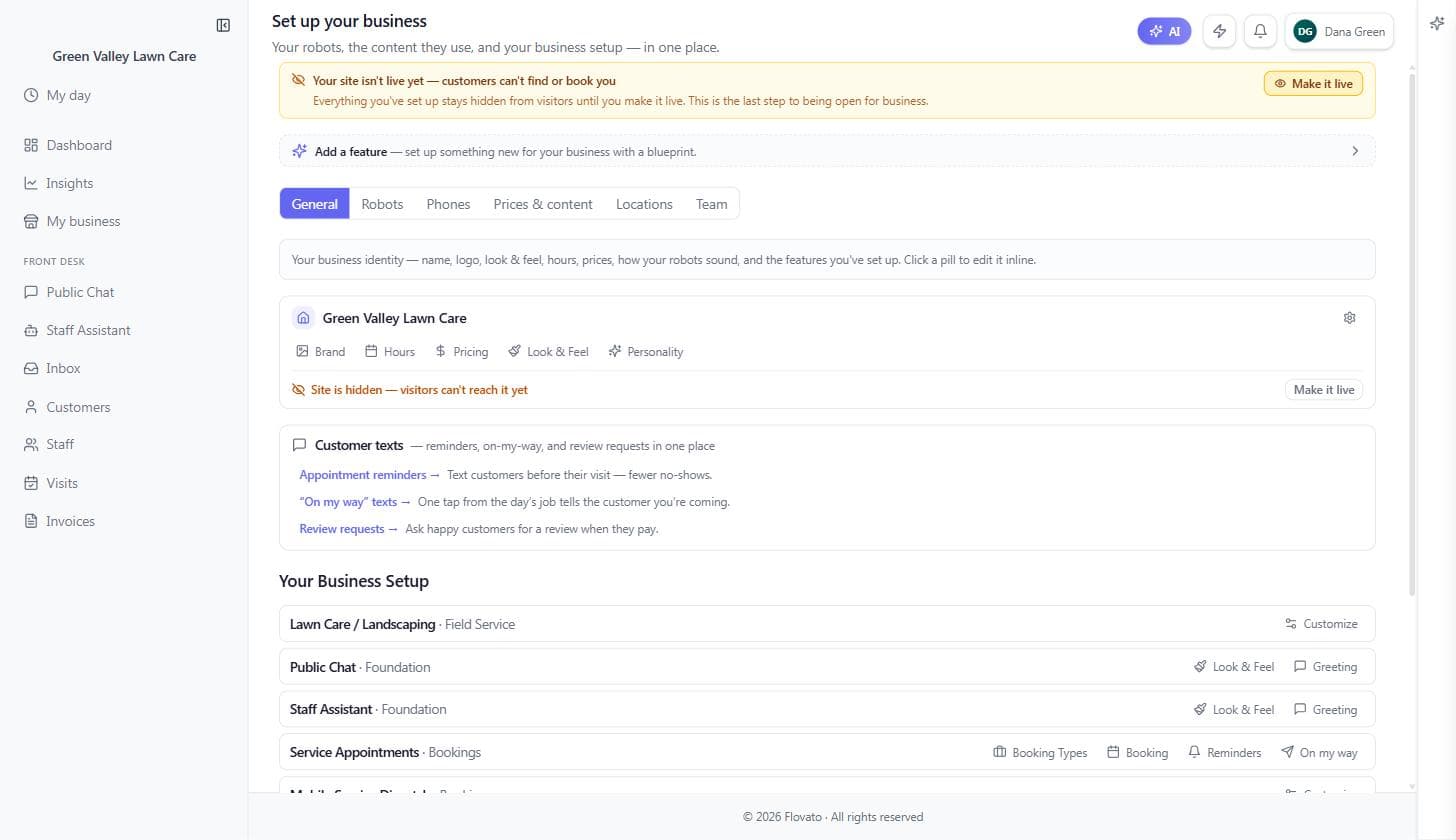
Brand — your name, tagline, and logos
The Brand pill holds your business name (shown in the header and nav), your tagline (the one-liner under the name), and three logo slots sized for different places: a full wordmark for wide spaces (600×200 works well), a square version for tight spots (128×128), and a small icon that doubles as the favicon (64×64).
You don't need all three on day one — upload the one logo you have and Flovato uses it sensibly. No logo at all is fine too; your pages simply lead with your business name.
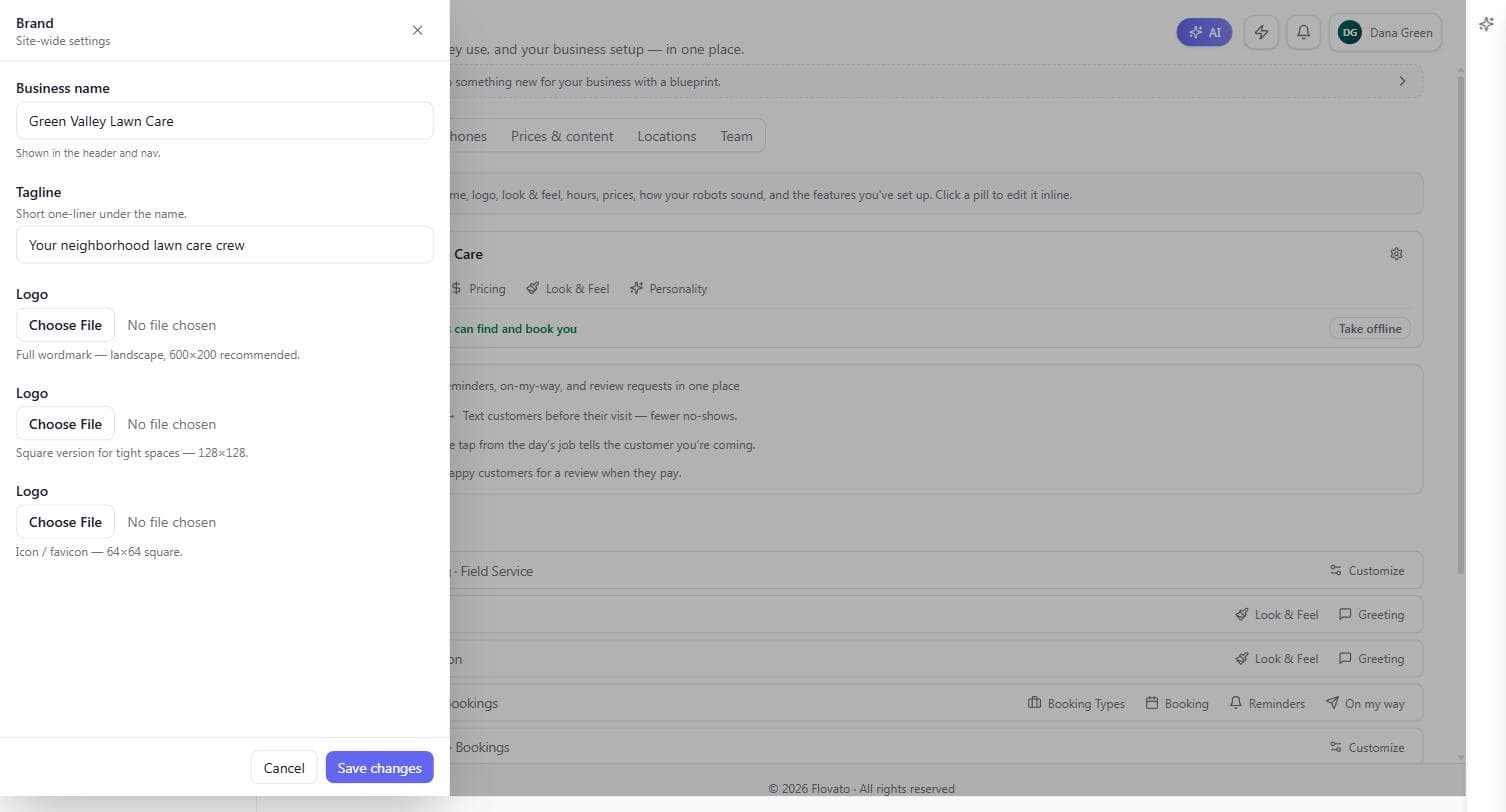
Hours — what customers see, day by day
The Hours pill opens your site-wide weekly schedule: a checkbox per day, open and close times, and an "+ Add block" link on each day for split shifts — closed over lunch, open again after. The timezone selector sits at the top; every time anywhere in Flovato reads in this zone.
Two subtleties worth knowing. These are the hours shown to customers and used by your chat's "are you open?" answers — if you want booking to follow a different window than your posted hours, booking hours are edited separately in your appointment settings. And if you run more than one location, each location uses these hours unless you give it custom ones under Locations.
Green Valley's Saturday 9–1 shows here exactly as set in the wizard — and if Dana ever starts closing for lunch on Saturdays, one "+ Add block" turns it into 9–12 and 1–3 without touching anything else.
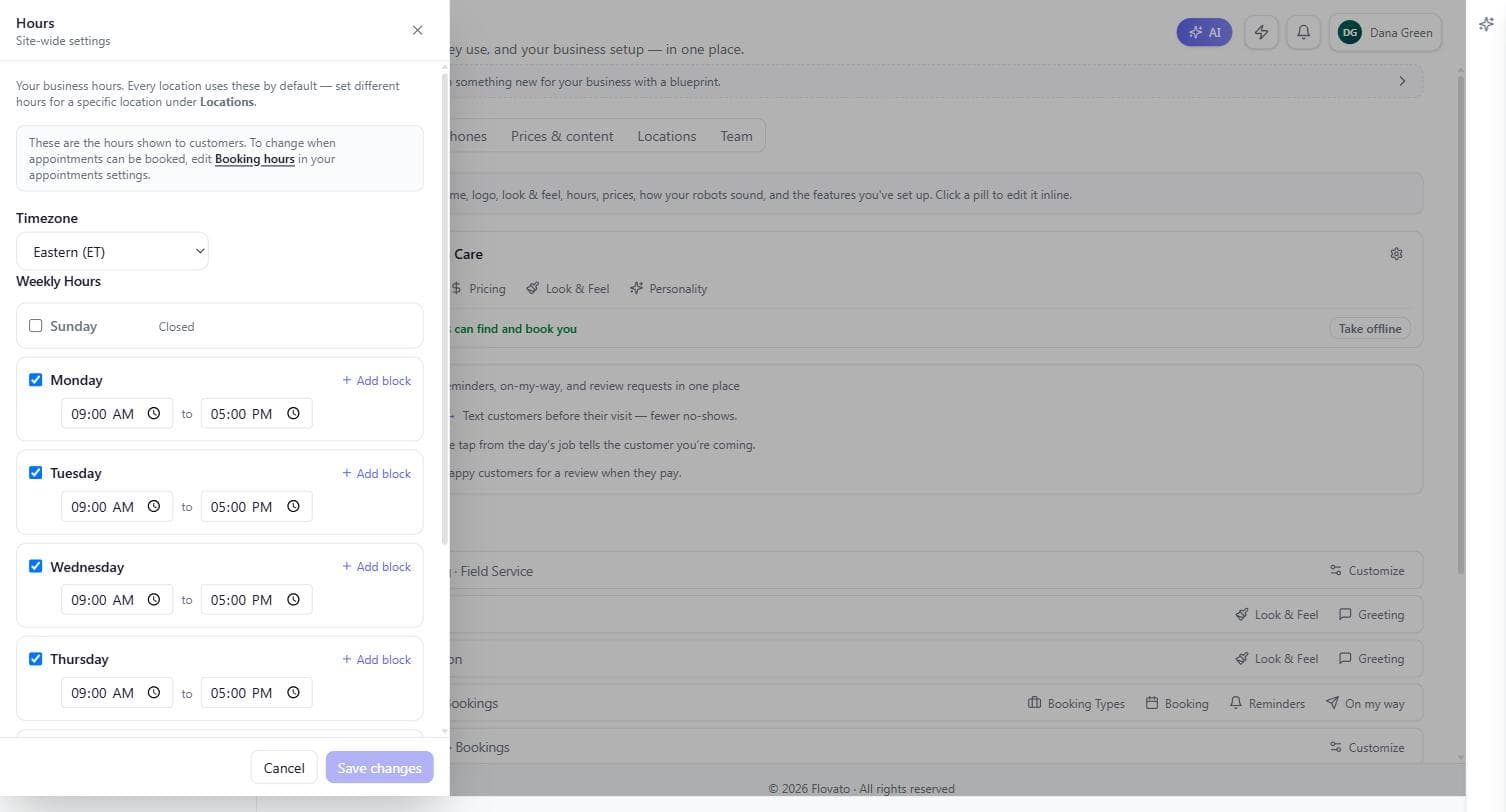
Pricing — the quick editor
The Pricing pill is a fast pass over your whole price list: every line from your price book with its price and optional cost, editable in place.
Price is what customers pay and what the robot quotes. Cost is yours alone — it's never shown to customers or the robot, and filling it in lets Flovato track margin per job. To add or remove items or change names, use the full price book in Prices & content; this pill is for the "mulch went up eight bucks" moment between jobs.
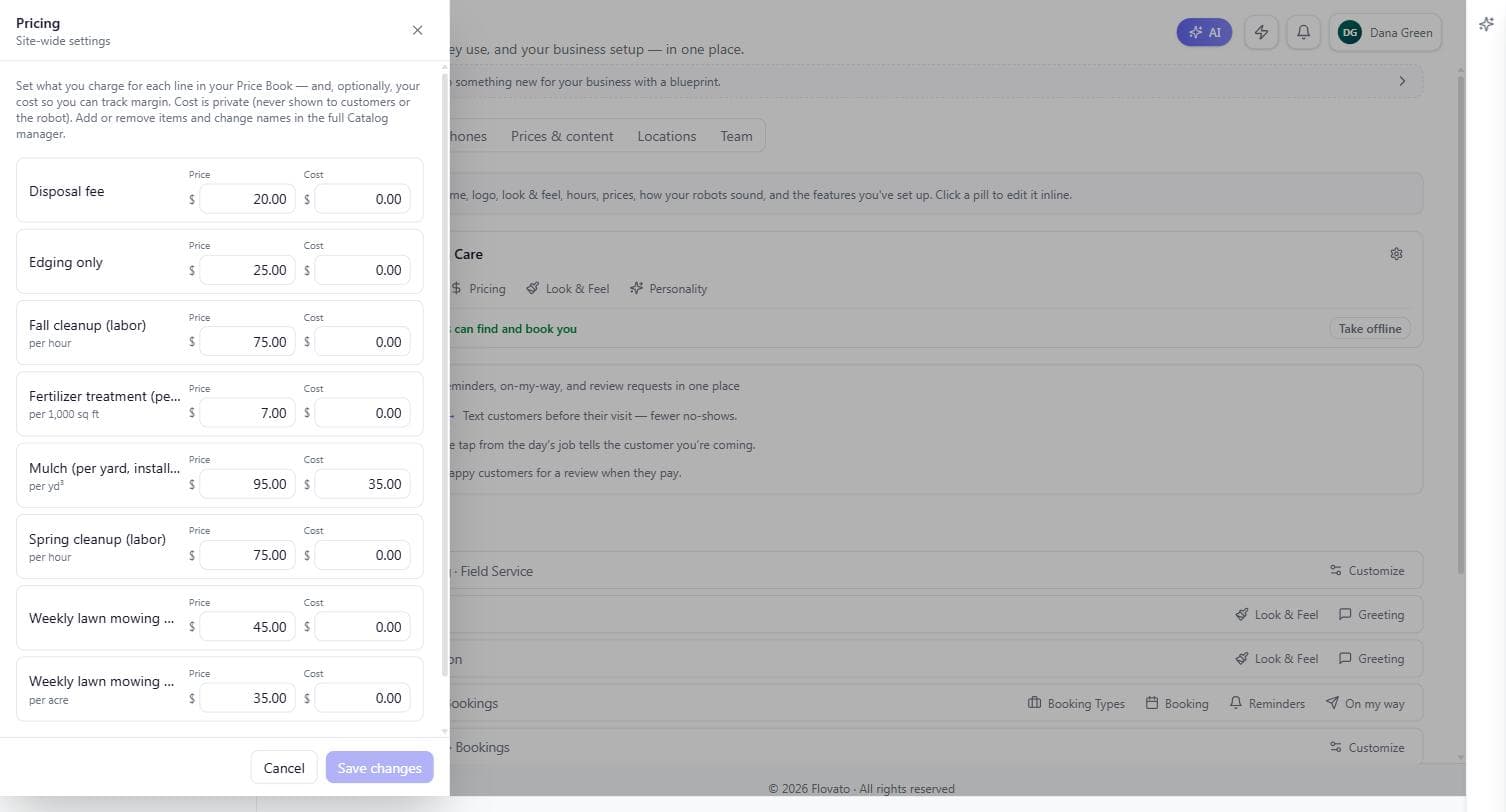
Look & Feel and Personality
The last two pills shape how your presence feels. Look & Feel sets the colors and theme your chat and public pages carry, so the widget on your site looks like your business, not ours. Personality is the same voice picker you met in the wizard — Professional, Friendly, Concise, Helpful, or a custom description — and changing it here re-tunes every robot at once.
A good habit: after any change in this tab, open your public chat and ask it something. You'll see the new brand, hours, or tone reflected immediately, and it keeps you looking at what customers see.