Prices & content
The price book your AI quotes from, FAQ sets and documents it can answer from — and the switch that makes them searchable.
about 10 minutes
The Prices & content tab holds the content your robots work from — and the rule that makes it powerful: you add content once here, and every robot can use it. A price book any robot can quote, an FAQ set they all answer from, documents they can all search.
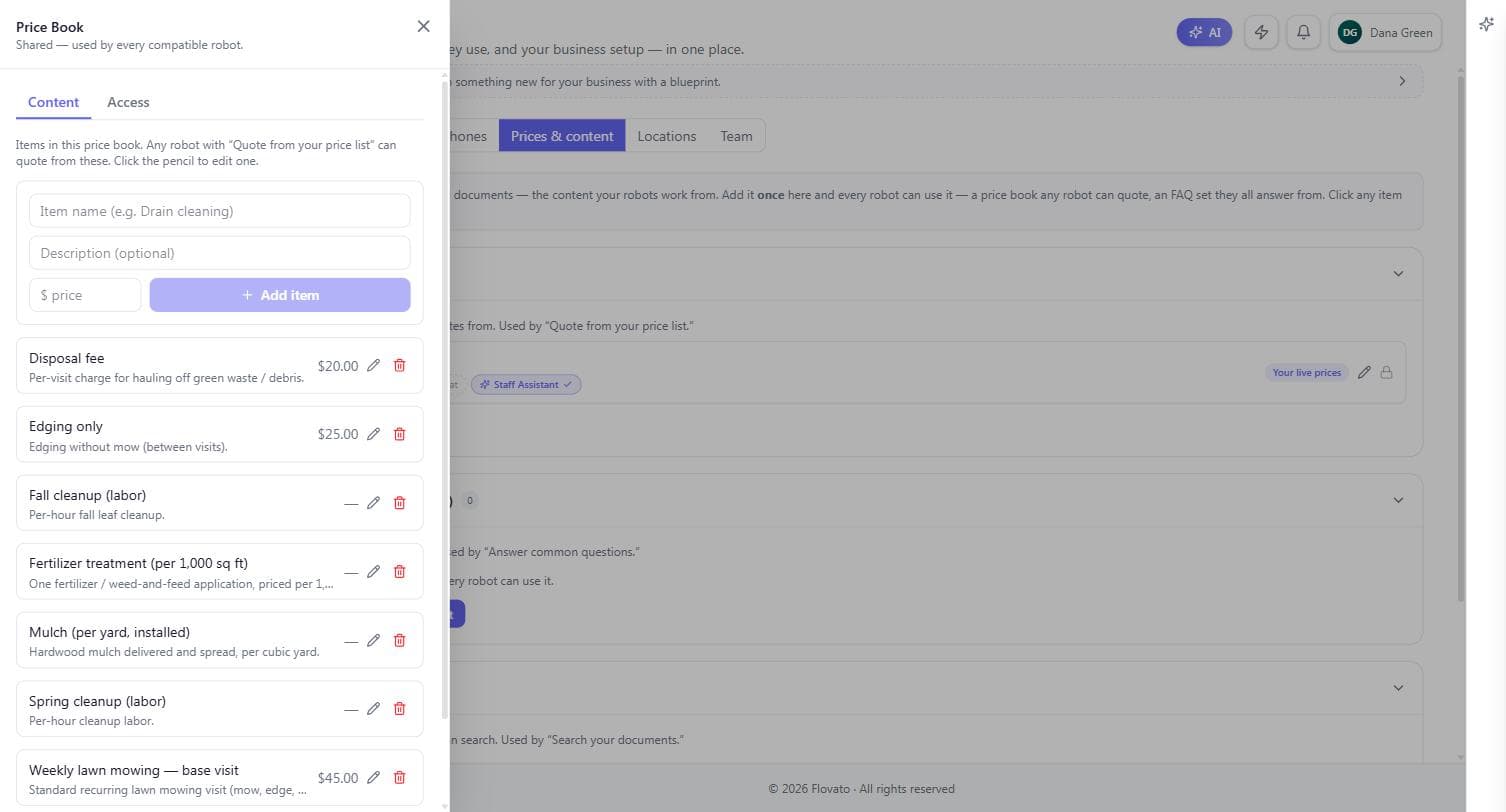
Three sections, three kinds of content. Price books hold your priced items ("Your live prices" is the live one). Knowledge (FAQ) holds question-and-answer sets — this is what the "Answer common questions" switch reads from. Documents holds uploaded files the robot can search — spec sheets, service manuals, policies.
Accurate prices here mean accurate answers everywhere — chat quotes and invoice line items both come from this one list, so you never maintain two price lists.
Inside the price book
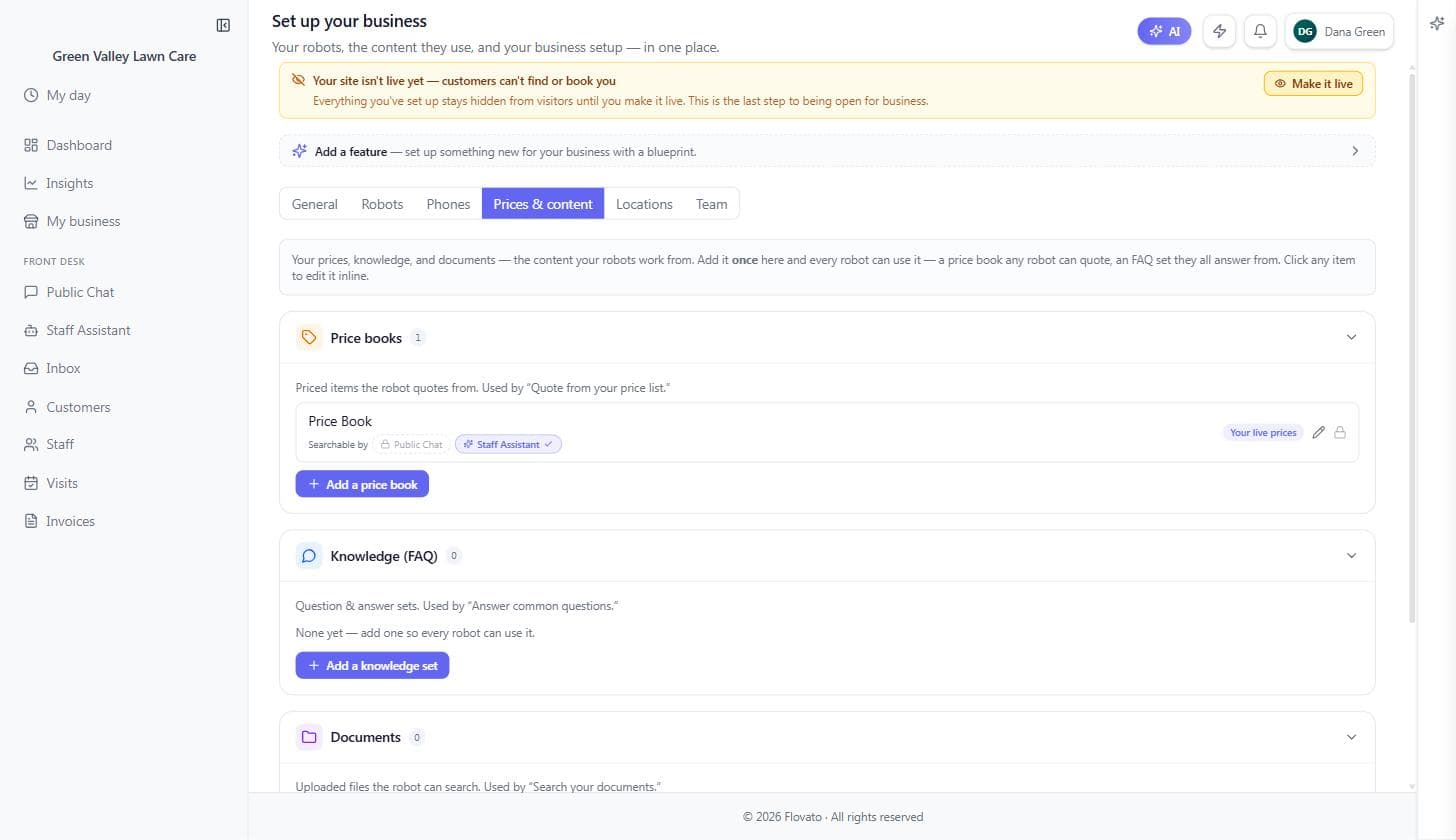
Click the pencil on a price book and the full editor opens: an add-item form at the top (name, optional description, price — that's all a new item needs) and every existing item below with its own pencil and trash.
The Access tab next to Content decides which robots can search this book. Green Valley's book is searchable by the Staff Assistant and quotable by Public Chat through the "Quote from your price list" switch — which is the pattern most businesses want: customers get quotes, staff get the whole book.
Item descriptions earn their keep here: "Per-visit charge for hauling off green waste / debris" under the disposal fee is what lets the robot apply it to the right conversations. A price list with good one-line descriptions quotes like your best office person.
Green Valley's book: weekly mowing $45 per visit, cleanup labor $75 an hour, mulch $95 a yard installed. Ask its chat what mowing costs and those exact numbers come back.
Creating a knowledge set
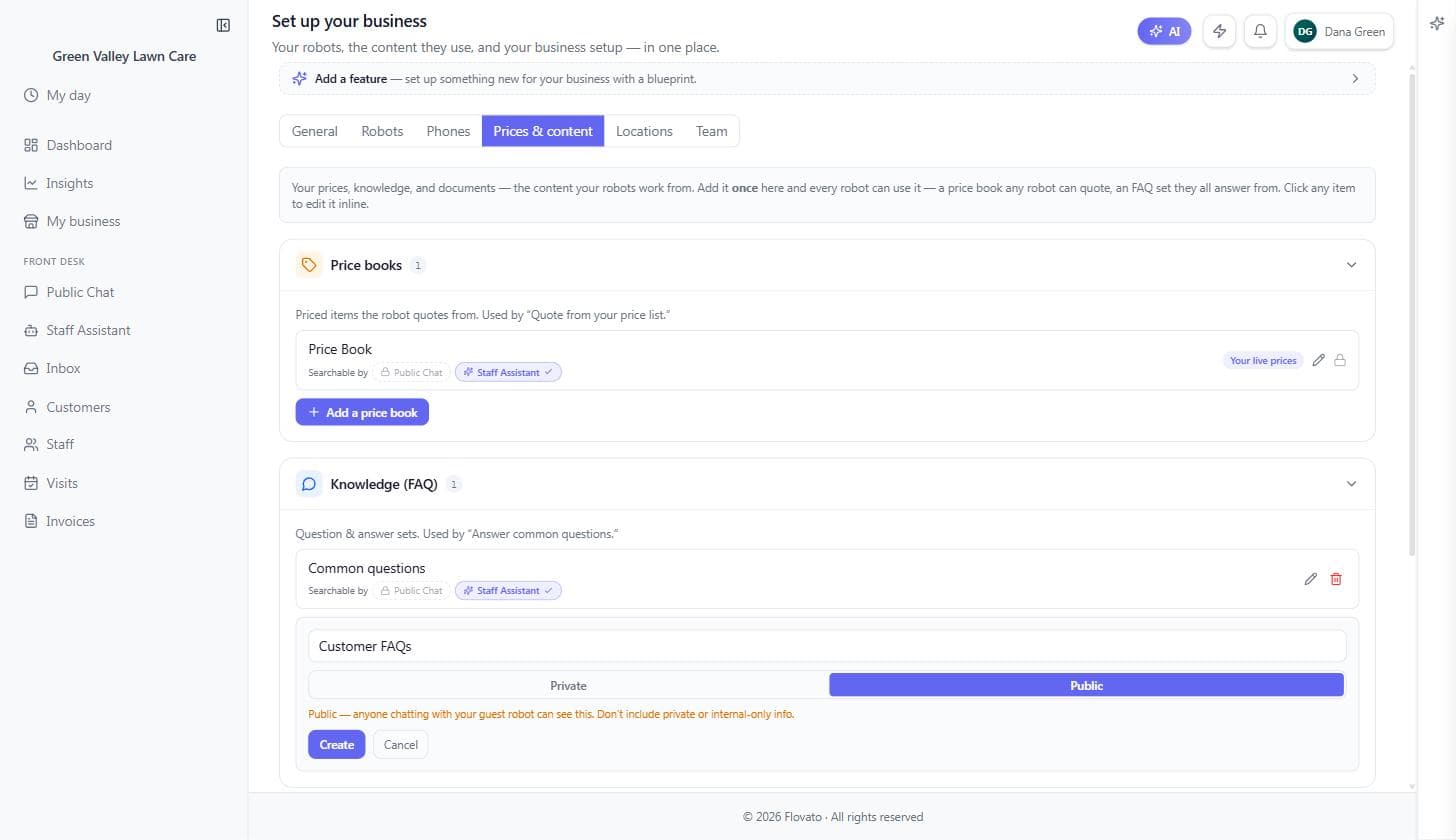
Add a knowledge set when you notice the same questions recurring — "do you haul away clippings?", "do I need to be home?" Hit "Add a knowledge set," name it, and make the one decision that matters: Private or Public.
This choice is permanent, so make it on purpose. Private means only you and signed-in staff — forever: a private set can never be opened up to your public robot later. That's a safety feature, not a limitation — nothing you marked private can leak into guest chat by a later mis-click. Public means anyone chatting with your website robot can get these answers, and the form warns you in amber not to put internal-only info there.
The rule of thumb: answers you'd happily say to a stranger on the phone go in a Public set; crew notes, internal pricing logic, and "how we really handle X" go in a Private one. Most businesses end up with one of each.
Green Valley keeps two: "Customer FAQs" (Public — clippings, do-I-need-to-be-home) and "Common questions" (Private — staff-only notes). Same editor, opposite audiences.
Writing cards the AI can answer from
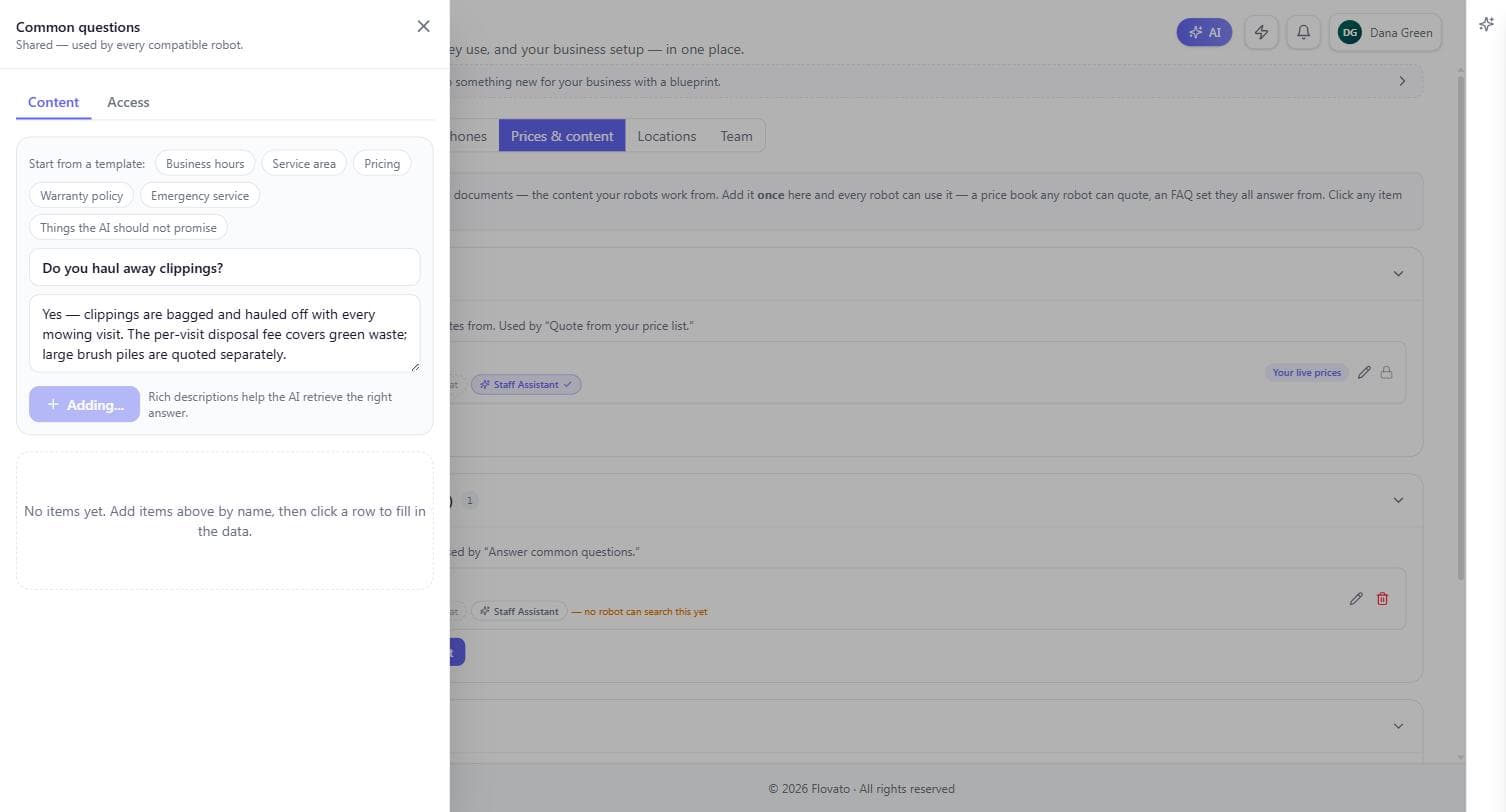
The editor works like a stack of index cards: an item name (the question or topic) and a full description — write it rich, because the AI reads exactly this text to answer customers. Ctrl+Enter adds the card and the form clears for the next one, so batching ten questions takes minutes.
Template chips across the top (Business hours, Service area, Warranty policy, even "Things the AI should not promise") give you proven starting points — that last one is where you write down what the robot must never commit to, like exact arrival times or prices you haven't set.
Green Valley's first card: "Do you haul away clippings?" → "Yes — clippings are bagged and hauled off with every mowing visit. The per-visit disposal fee covers green waste; large brush piles are quoted separately." One write-up, consistent answer, forever.
Flip it on: the "Searchable by" pills
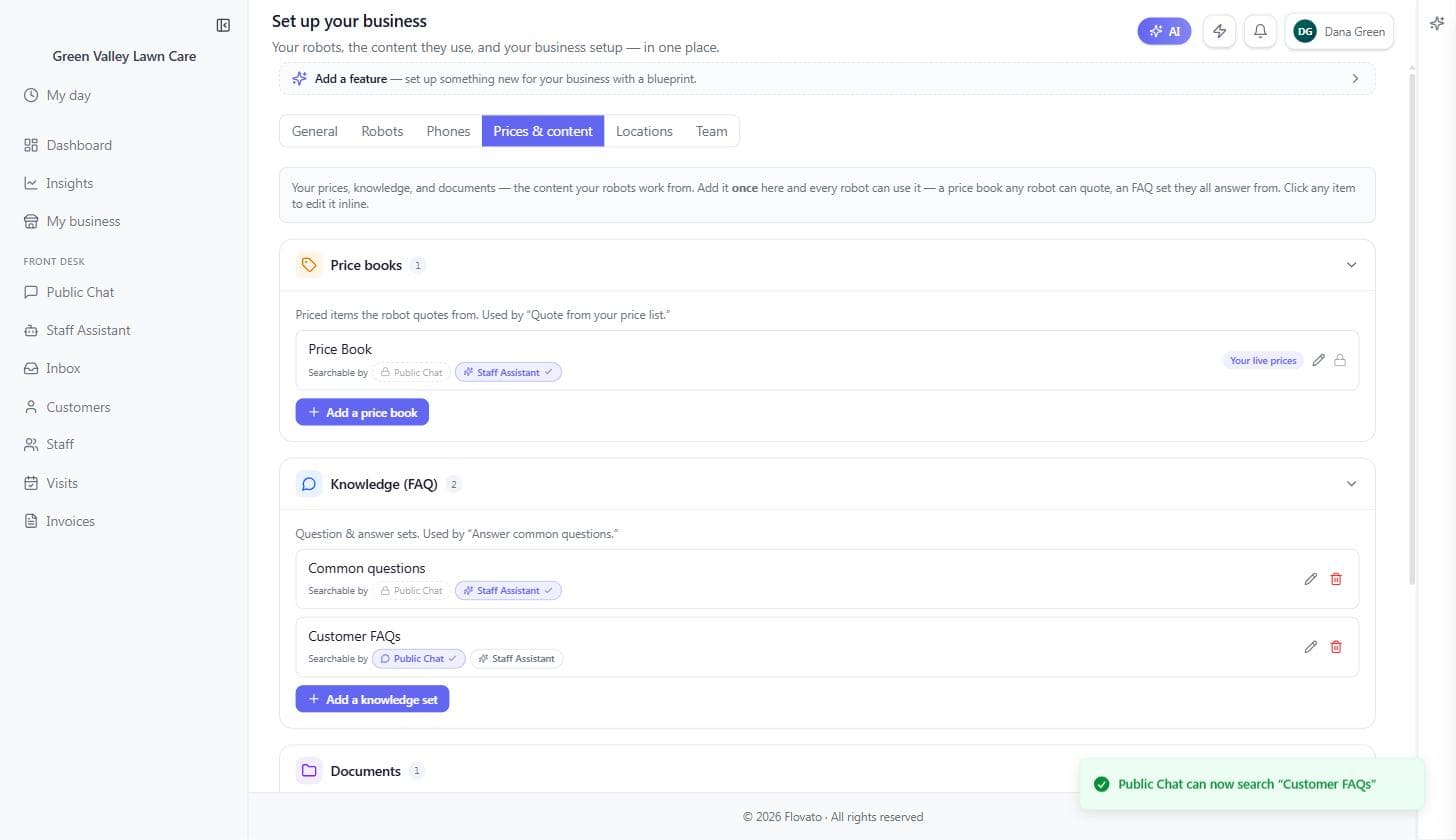
Here's the step most people miss — and until you do it, all that writing is invisible. Every content card on Prices & content carries a "Searchable by" row with one pill per robot, and a brand-new set shows an amber note: "no robot can search this yet." Content without access is searched by nothing. That's deliberate (nothing leaks by default), but it means there's one more click between writing and answering.
Click a robot's name to grant it — a toast confirms ("Public Chat can now search 'Customer FAQs'") and a check appears on the pill. Click again to take it back. Granting also lights up the matching switch from chapter 5 on that robot — "Answer common questions" turns itself on the moment it has something to draw from.
Some pills show a little padlock instead: that's policy, not a bug. On a Private set, the Public Chat pill is locked with the reason "Private content can only be searched by an internal assistant — not a public-facing robot." If you want customers to get those answers, the fix is a Public set (previous section), not fighting the padlock.
Prefer working in the editor drawer? The same grant lives on each set's Access tab — the pills and the tab write the same setting, so use whichever is in front of you.
Prove it in your own chat
One quick pre-flight first: on the Robots tab, glance at "Answer common questions" for the robot you just granted. Granting turns it on for you, so it should already show on — but seeing it takes two seconds and rules out the silent-robot mystery before it starts. If it's off, flip it.
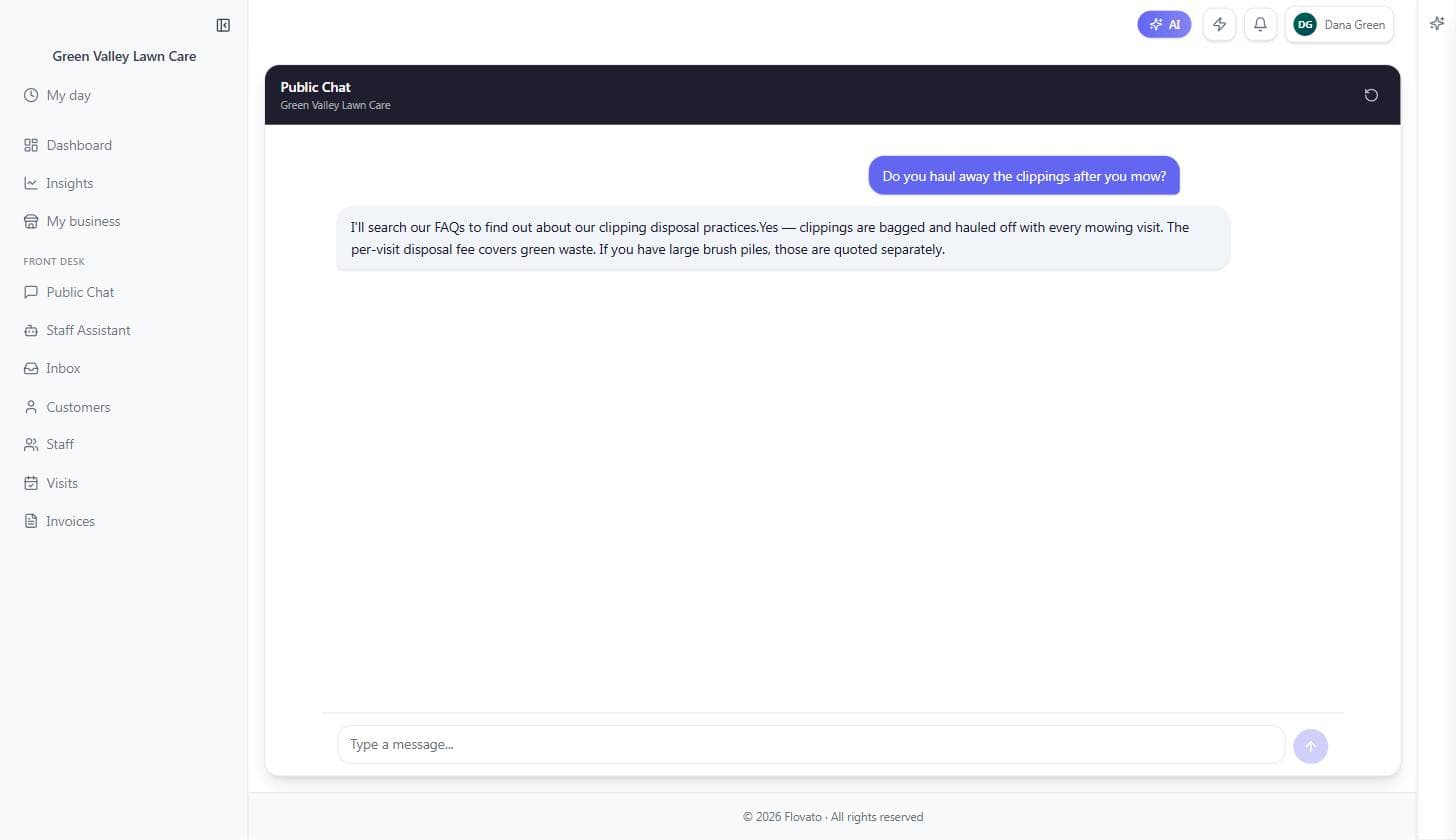
Now don't take the checkmark's word for it — open Public Chat from the left menu and ask one of your questions the way a customer would, not the way you titled the card. Green Valley asked "Do you haul away the clippings after you mow?" and got the card's answer back: bagged and hauled with every visit, disposal fee covers green waste, brush piles quoted separately. The robot even narrates its work — "I'll search our FAQs…" — before answering.
If the robot apologizes and offers to take a message instead, check the three usual suspects in order: is the set granted to this robot (the pills), is the set Public (a Private set never reaches Public Chat, however many pills you click), and is "Answer common questions" switched on for that robot in chapter 5.
Just you: Do this test the moment you add a set — thirty seconds now beats discovering a silent robot from a customer's complaint later.
With a crew: Have someone who didn't write the cards ask the questions — they'll phrase things the way real customers do and expose thin answers fast.
Uploading documents
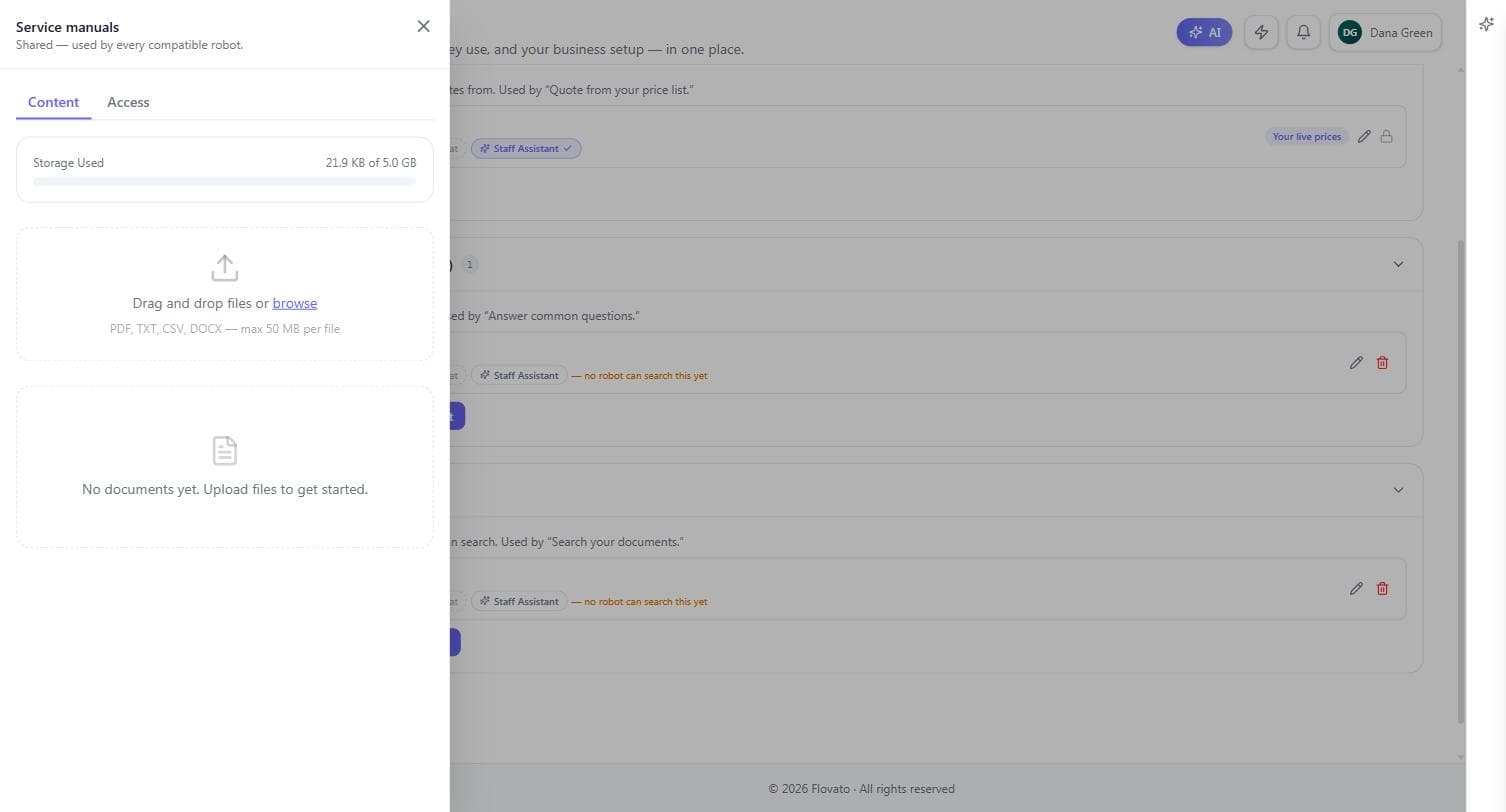
When the answers live in files — service manuals, warranty policies, supplier spec sheets — create a document set. Document sets are private by design: files can hold sensitive details, so they're never shown in guest chat, period.
Name the set, hit Create, and you get a drag-and-drop zone: drop files in batches or browse — PDF, TXT, CSV, and DOCX up to 50 MB per file, with a storage meter showing your plan's allowance. Then grant access exactly like the previous section — the same "Searchable by" pills sit under every document set (private by design, so it's the Staff Assistant you'll be granting) — and the robot pulls answers out of the actual manual instead of guessing.
FAQ sets power "Answer common questions," documents power "Search your documents & files." Content here, switches there — that's the whole architecture.