Set up your team
Solo mode, adding your first crew member, roles and free crew logins, and what each person sees.
about 8 minutes
If it's just you, this chapter is a two-minute read about your future: there's nothing you have to set up today, and skipping this costs you nothing.
When you do bring people on, the Team tab in My business is where it happens. Each person gets their own account — no shared passwords — and roles keep it sane: an office manager can run invoices and the calendar, while a field tech sees their own jobs and nothing about your pricing or your books unless you say so.
You don't have to be a team today. Start solo, add your first helper the week it happens, and keep growing — Flovato handles one person or thousands of employees on the same setup, so there's never a migration day.
Just you: Stay in solo mode — no seats to manage, nothing extra to configure, no team screens cluttering your day.
With a crew: Add your crew from My business → Team. Techs get the My Day view with just their jobs, and you decide who can see prices, customers, and money.
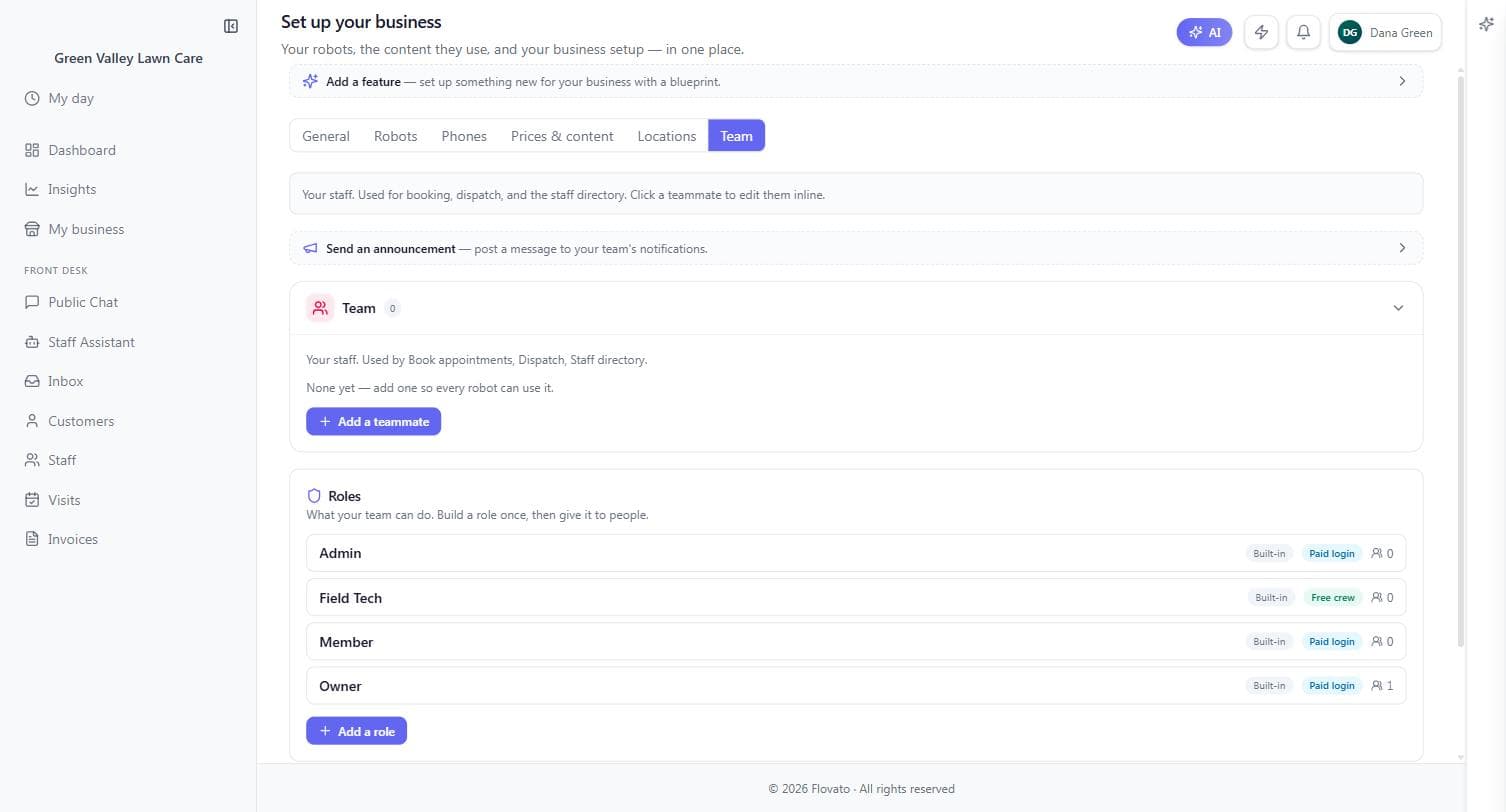
The Team tab — your people and their roles
The Team tab shows your staff roster up top and your roles below. Four roles come built in: Owner (you), Admin, Member, and Field Tech — and the pricing difference matters: office roles like Admin and Member are paid logins, while Field Tech is a free crew login. Your mowing crew doesn't cost you a seat; you pay for the people who run the office, not the people who run the mowers.
Roles are "build once, give to people": each one bundles what its holders can see and do, and "+ Add a role" creates custom ones when the built-ins don't fit. The "Send an announcement" row at the top is your team megaphone — one message to everyone's notifications.
Adding your first teammate
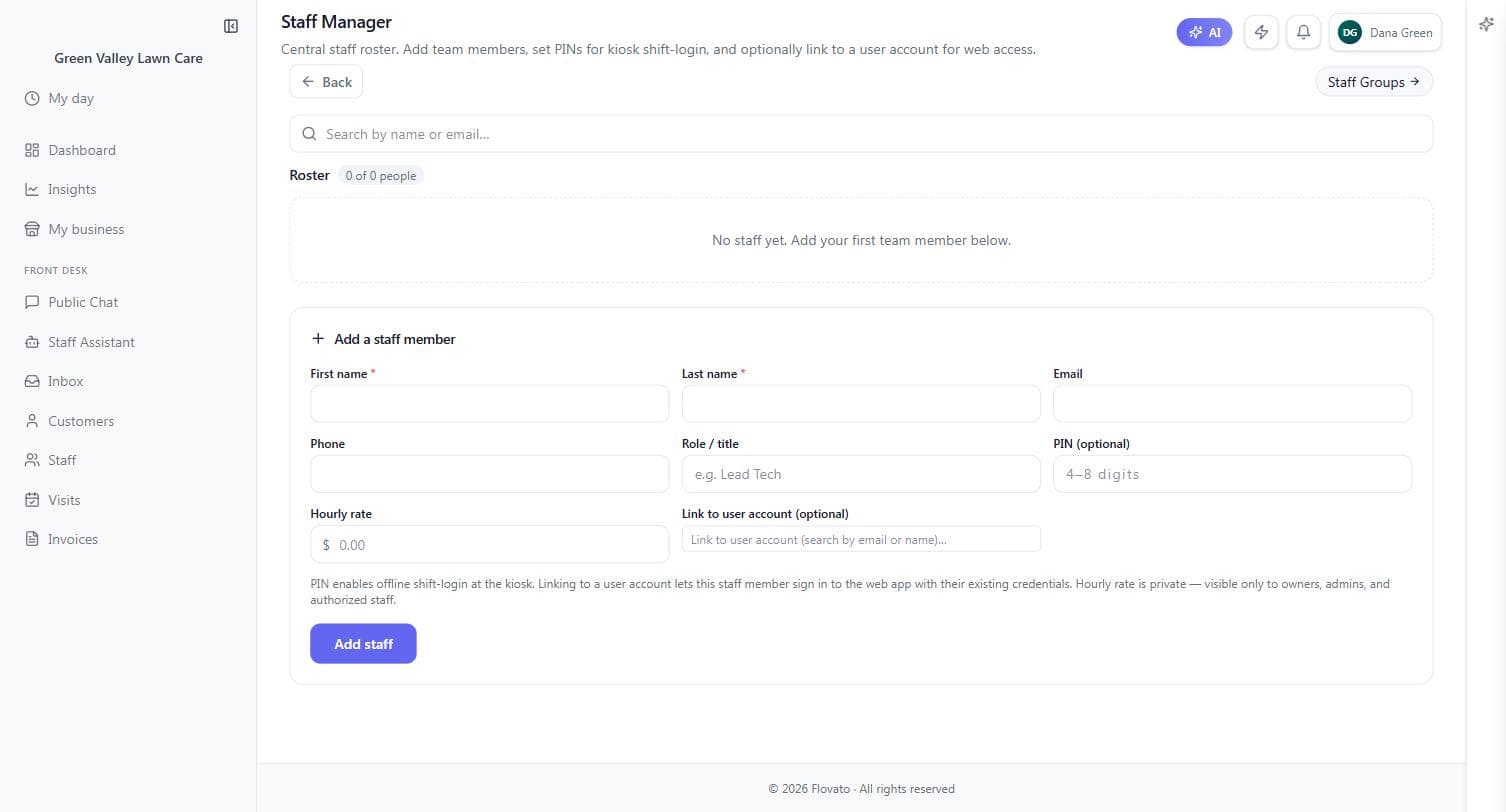
"Add a teammate" opens the Staff Manager — your central roster. A staff member needs only a first and last name; everything else is optional and worth understanding.
Phone and email are contact details for dispatch and the staff directory. Role / title is the label your customers and calendar see ("Lead Tech"). The PIN enables kiosk shift-login — a 4-to-8 digit clock-in code, no computer account needed. Hourly rate is private: visible only to owners, admins, and staff you authorize, never to the rest of the crew. And "Link to user account" is the switch that turns a roster entry into an app login — link it when this person needs to sign in, skip it for a helper who just needs to be schedulable.
That last distinction is the one that trips people up: the roster is for scheduling and dispatch, logins are for using the app. Every worker belongs on the roster; only give logins to the people who need screens.
When Green Valley hires its first helper, Dana adds "Mike Torres, Lead Tech" with a PIN for clock-in — no login, no seat. The week Mike starts running his own route, she links a user account and he gets My Day on his phone.
What each person sees
Roles gate everything. A Field Tech opens the app and lands on My Day — today's jobs, addresses, property notes, and nothing else. Office roles see the calendar, customers, and invoices they need to run the desk. Prices, costs, and money screens are visible exactly where you allow them and nowhere else.
The practical effect: you can hand your newest helper the app on day one without thinking about what they might stumble into — the role already decided.