Go live and test it
Flip the switch, share your web address, test-drive your own robot, and put the chat on a site you already have.
about 9 minutes
Flip the switch
Until you go live, your site is hidden from the public — a status line says so in plain words ("Site is hidden — visitors can't reach it yet") and you set everything up at your own pace behind it.
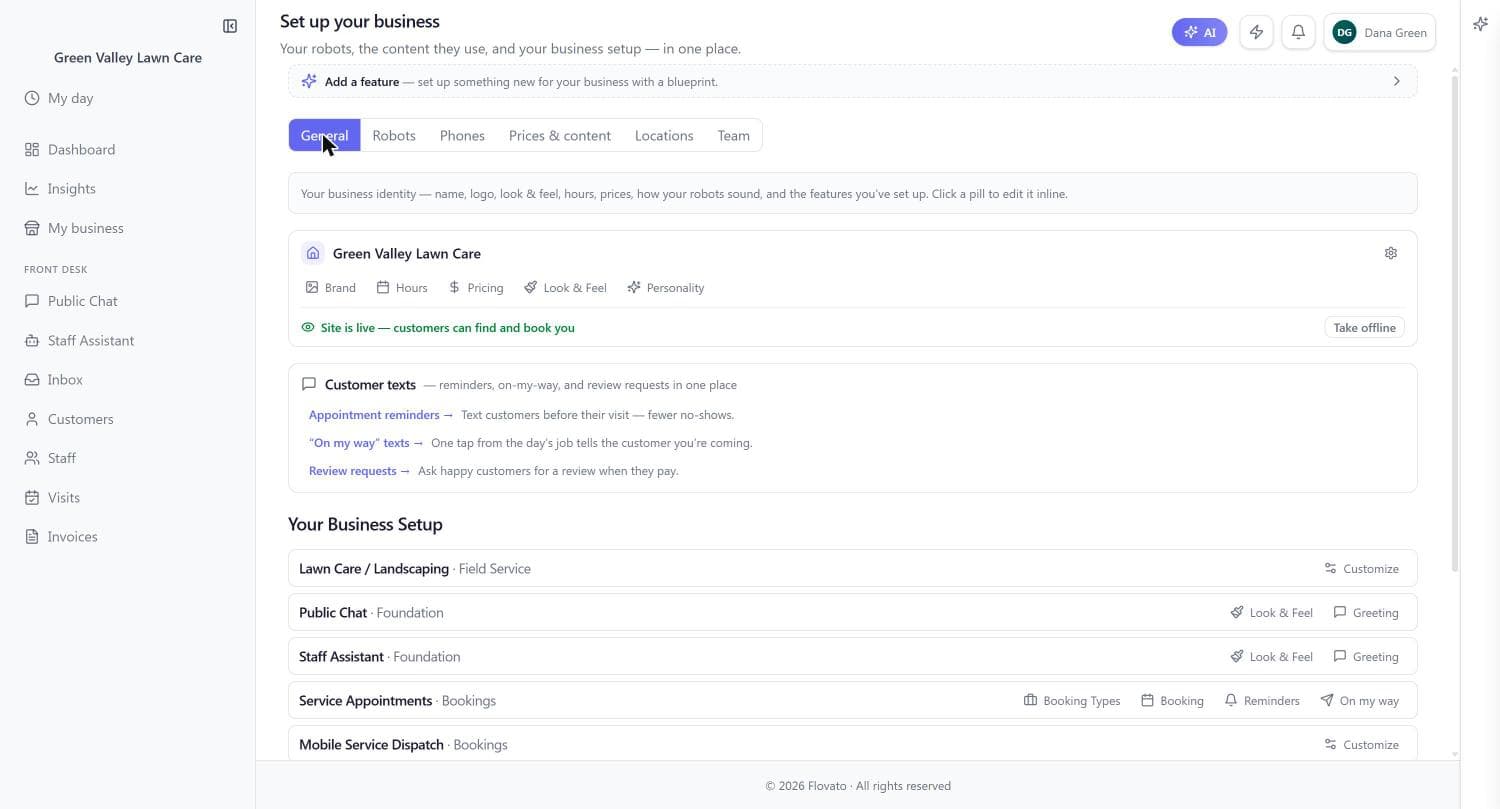
The switch lives on the site card: My business → General tab, bottom row (the dashboard's banner points there too). Hit "Make it live" and it asks once before doing anything — "Customers will be able to find and book you — Yes, go live" — because publishing is a real event, not a toggle to fat-finger. Confirm, and the row flips to the green "Site is live — customers can find and book you."
It works the same in reverse. "Take offline" sits in the exact spot after you're live, with its own plain-words confirm: "Visitors will get a closed door until you flip it back." Nothing about going live is one-way — flip it off for a vacation week, flip it back when you return.
Just you: Go live before you feel "finished." A live site with real prices and hours beats a perfect site next month — and every chapter's settings keep working live; edits show up immediately.
With a crew: Decide who owns the switch. It's an owner-level control — your crew's My Day and office screens don't change either way; only what the public can reach does.
Your web address — put it everywhere
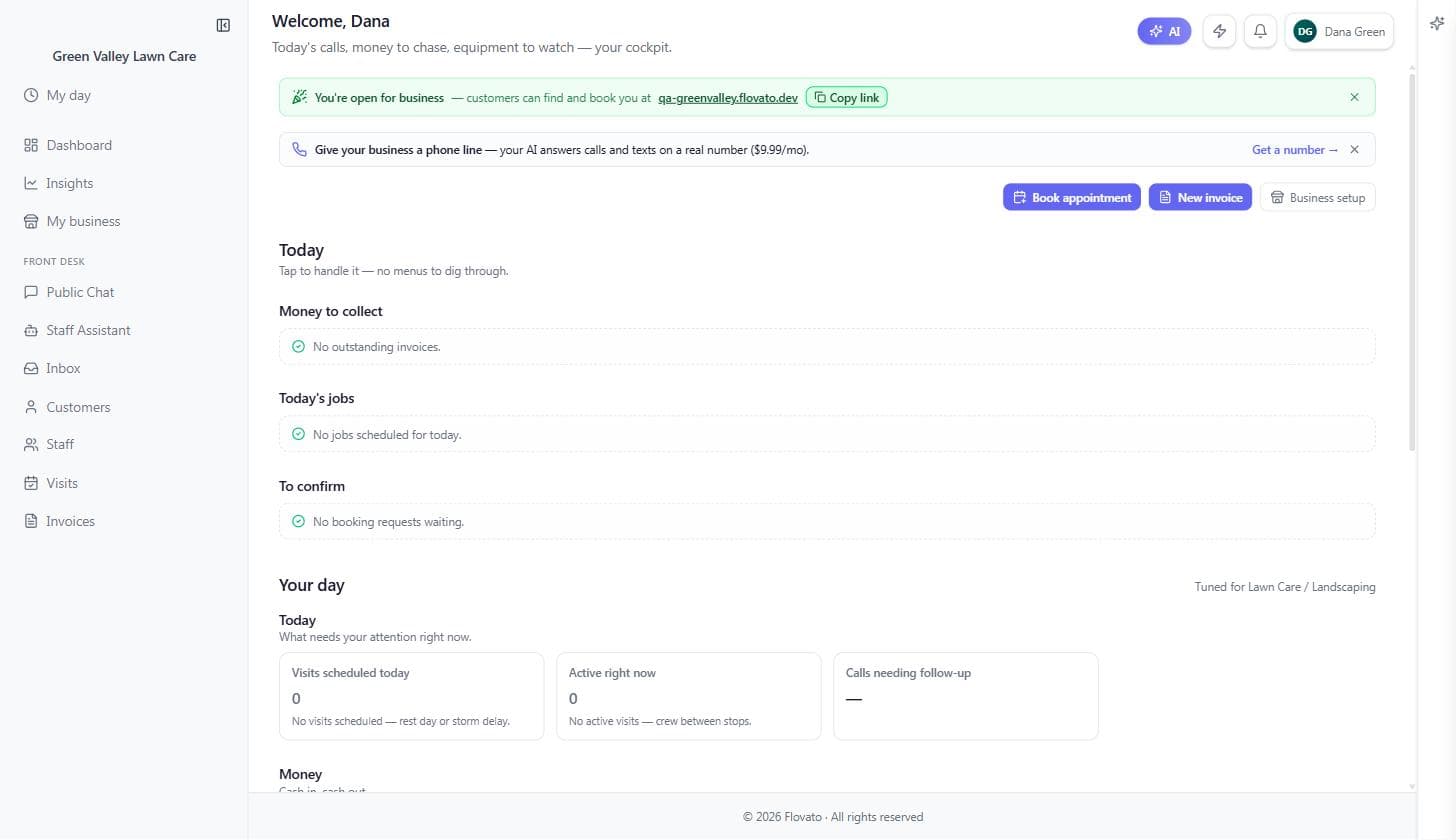
The moment you're live, the dashboard's top banner changes jobs: "You're open for business — customers can find and book you at <your-name>.flovato.dev", with a Copy link button right there. That address is your bookable front door — the chat, your prices, and the booking flow all live behind it.
Paste it everywhere a customer might look: the website field of your Google Business Profile, your Facebook and Instagram bios, the footer of your invoices and estimates, review replies ("book your next visit here"), even the magnet on the truck. Every one of those places becomes a door that answers questions and books jobs at 2 a.m.
The link never changes — printing it on physical things is safe. And if you already have your own website, the next sections put this same robot on it.
Green Valley's banner reads "You're open for business — customers can find and book you at qa-greenvalley.flovato.dev" with the Copy link button one click away.
Meet your robot
Open your own site the way a customer would and ask it something — a price, your hours, what you offer.
This is what every visitor gets, day or night, whether you're on a mower or asleep. If an answer isn't right, the fix is always one of the screens from this guide: hours and brand on the General tab, prices in the price book, capabilities on the Robots tab.
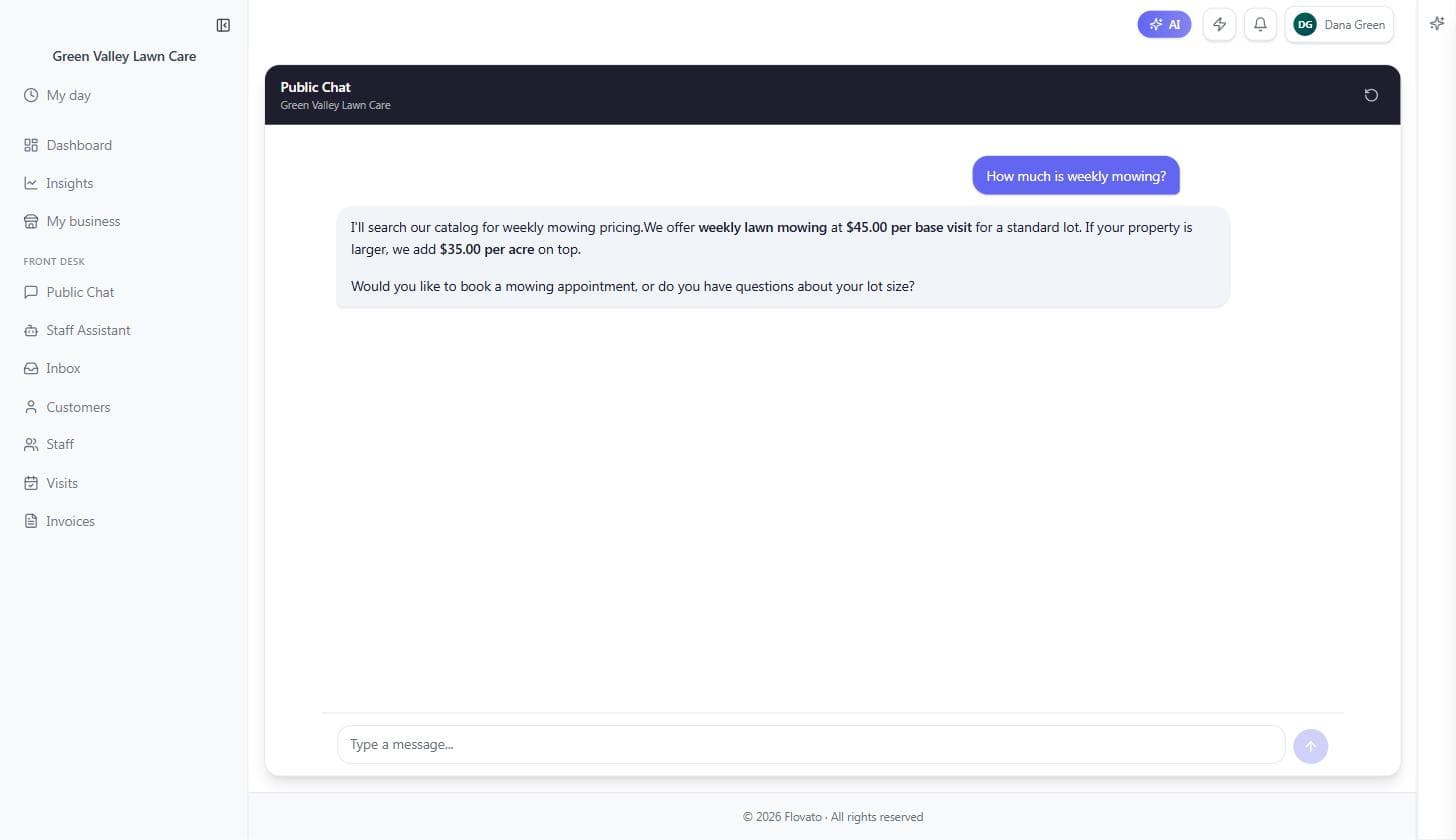
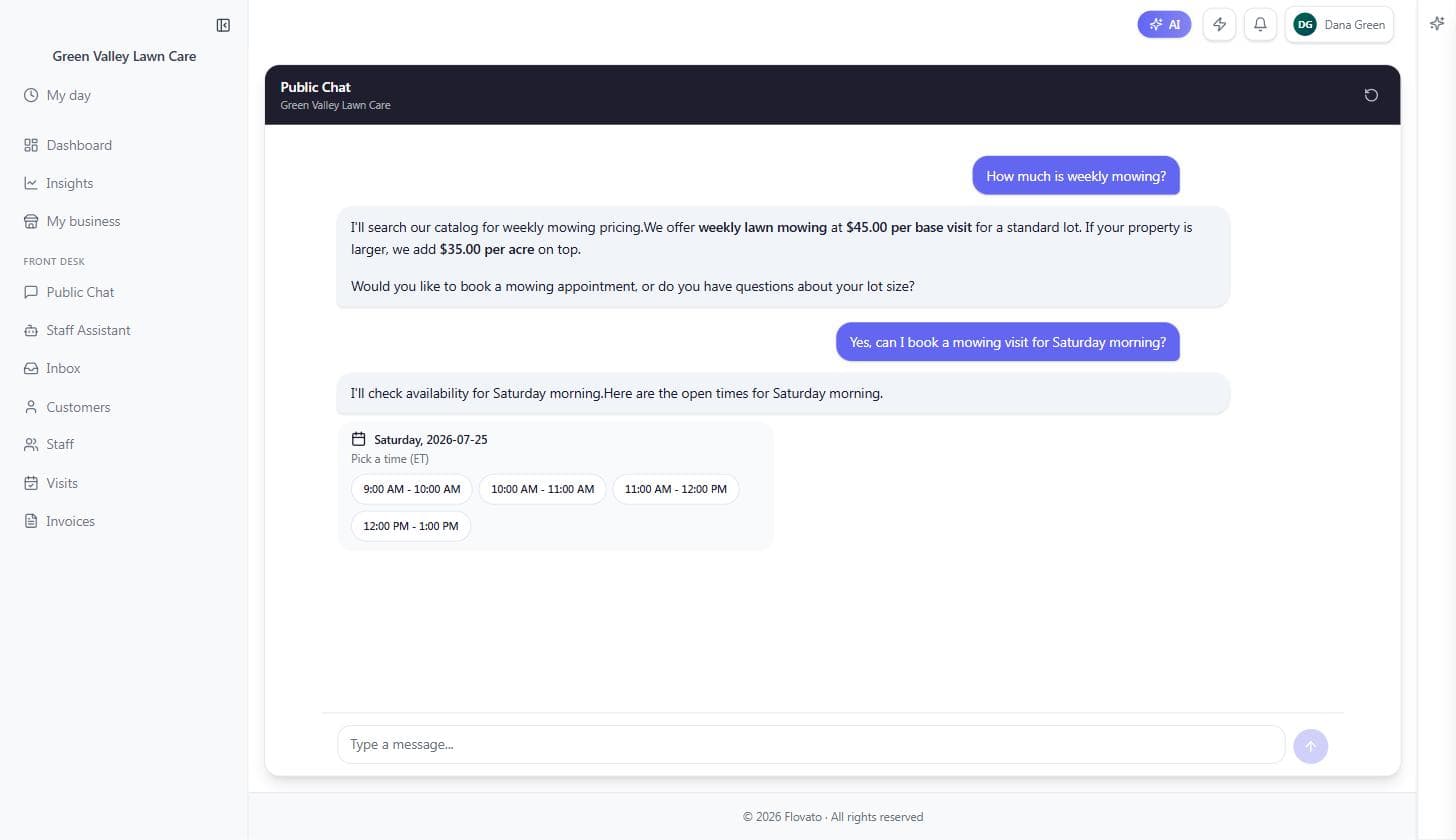
We asked Green Valley's chat "How much is weekly mowing?" — it quoted the exact price book numbers ($45 per visit, $35 per extra acre) and offered to book the job.
The ten-minute test drive
One first question isn't a test. Spend ten minutes playing your own toughest customer, and check each answer against a chapter of this guide:
Ask a price ("how much is weekly mowing?") — the numbers should match your price book exactly (chapter 6). Ask a policy question in customer words ("do you haul away clippings?") — that's your knowledge set answering (chapter 6, and the pills section if it comes up empty). Try to book a job — real open slots should appear, land in Visits, and show under "To confirm" on your dashboard (chapters 3 and 4 for hours). Ask something out of scope ("do you install pools?") — a good robot says no gracefully and offers to take a message (the switches in chapter 5 decide what it can do).
Anything that comes back wrong has a home: fix the content, not the robot. It reads what you wrote — hours from chapter 4, prices and answers from chapter 6, abilities from chapter 5.
Just you: Do the test drive from your phone in the truck — that's the device your customers use, and thumb-scale problems show up there first.
With a crew: Hand the test to whoever answers your phone today. They know the ten questions customers actually ask — if the robot handles eight of them, it's earning its keep.
Put the chat on a website you already have
Your Flovato address is the front door — but if you already run a website, the same robot can pop up there as a chat bubble. This lives one level deeper than the rest of this guide: flip on Advanced Mode with the lightning-bolt button in the top bar. A dialog explains what you're unlocking; it's safe to try and the same button flips it back anytime.
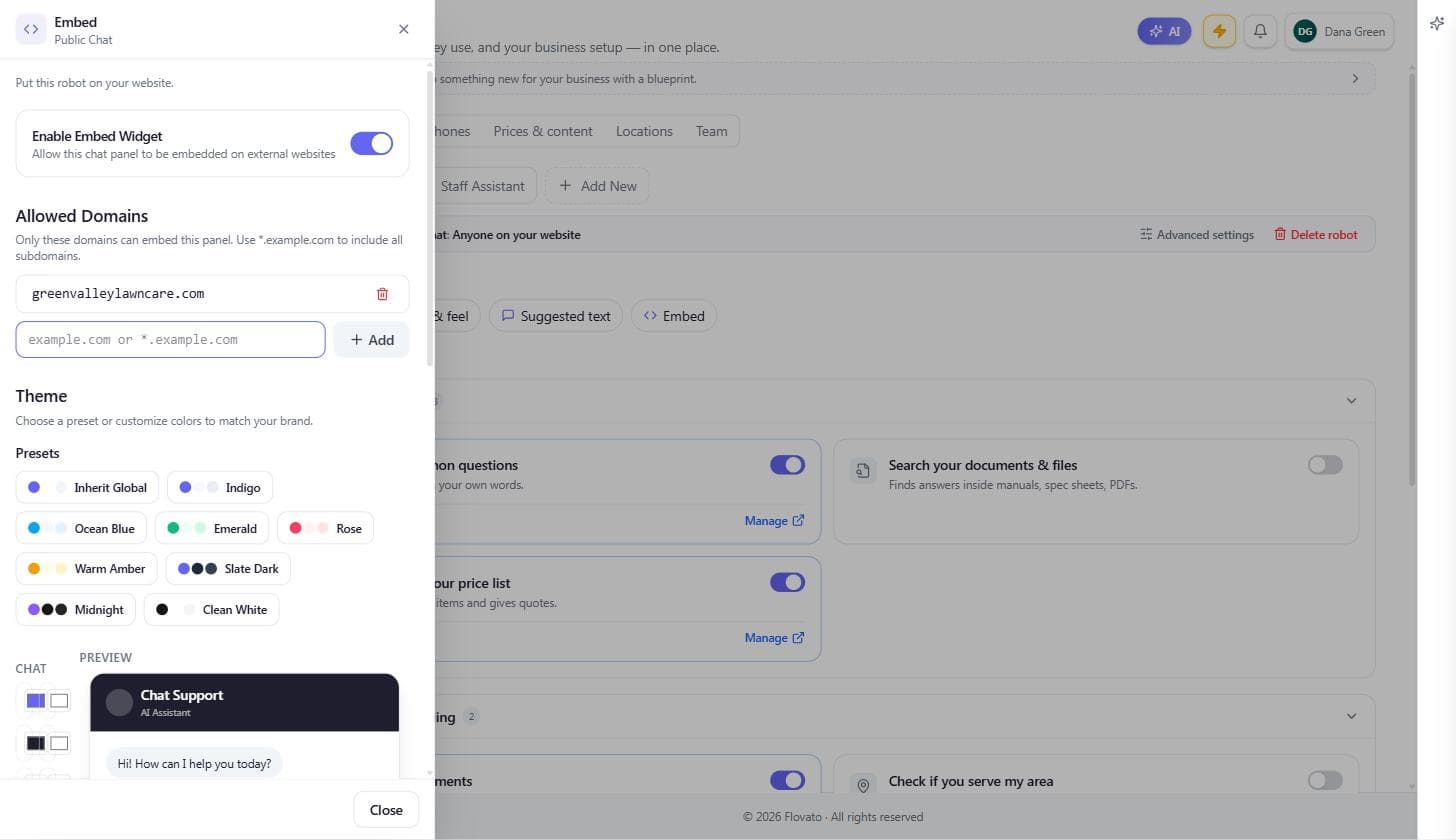
With Advanced Mode on, your chat robot's pill row on the Robots tab grows an "Embed" pill. Inside: switch on "Enable Embed Widget," then add your website's domain under Allowed Domains — that's a lock, not paperwork: only domains you list can load your robot. Pick a theme to match your site, then copy the generated snippet and paste it before the closing </body> tag of your website (or hand it to whoever built the site — it's one paste).
If the snippet ever ends up somewhere it shouldn't, the Refresh button next to the embed code rotates it — the old copy stops working everywhere, and you paste the new one where it belongs.
No website? Skip this entirely — your Flovato address from the previous section does everything the embed does, with nothing to maintain.