Add your crew — free crew logins vs paid seats
Put a helper on your roster, give them a free crew login for My Day, and know exactly which people cost you a seat.
4 steps · about 5 minutes
- 1
Roster first, logins second
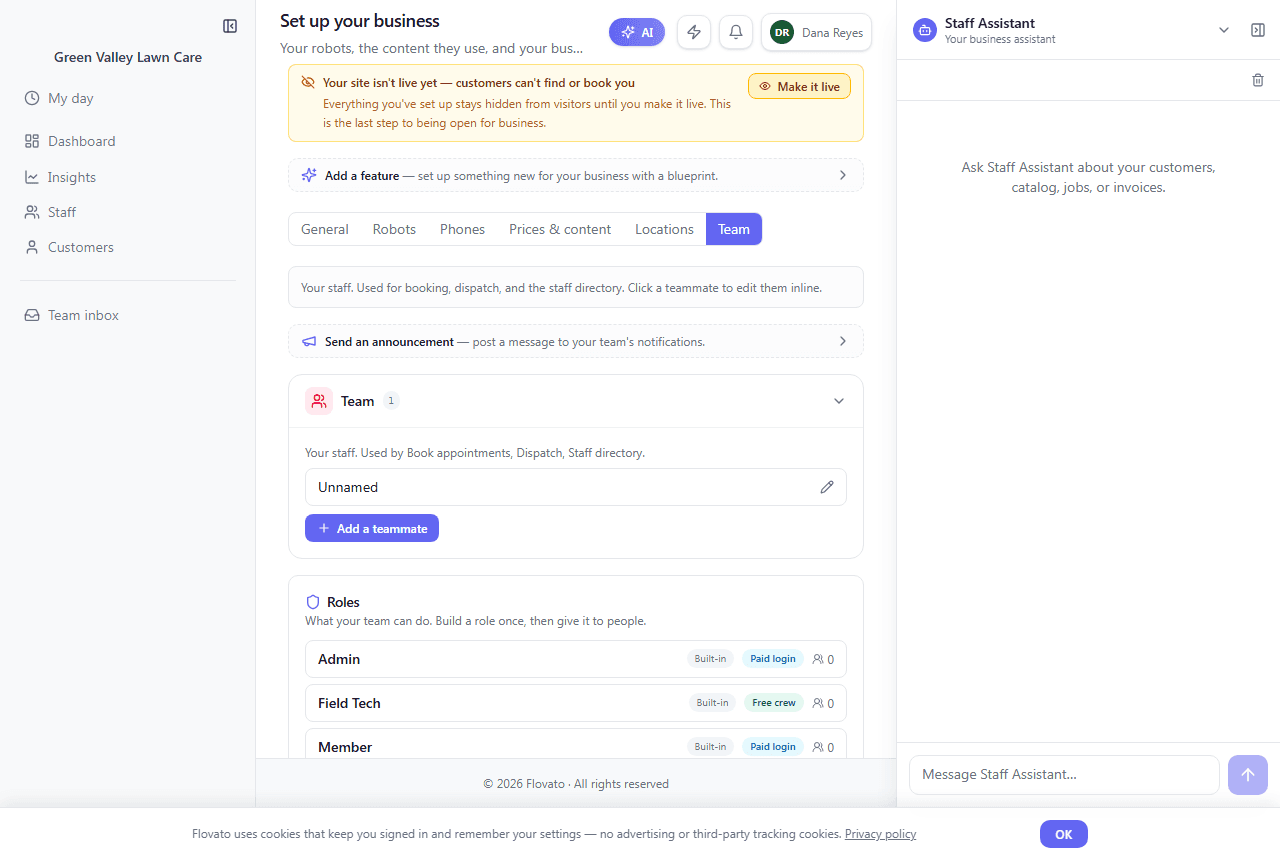
My business → Team tab
There are two separate ideas here. Your roster is everyone who does work: they can be scheduled, dispatched, and paid by the hour. A login is for people who need to use the app. Everyone who works for you belongs on the roster, but not everyone needs a login.
The Team tab lists your roster at the top and your roles below. Four roles are built in: Owner, Admin, Member, and Field Tech. Owner, Admin, and Member are paid logins. Field Tech is a free crew login.
- 2
Add someone to the roster
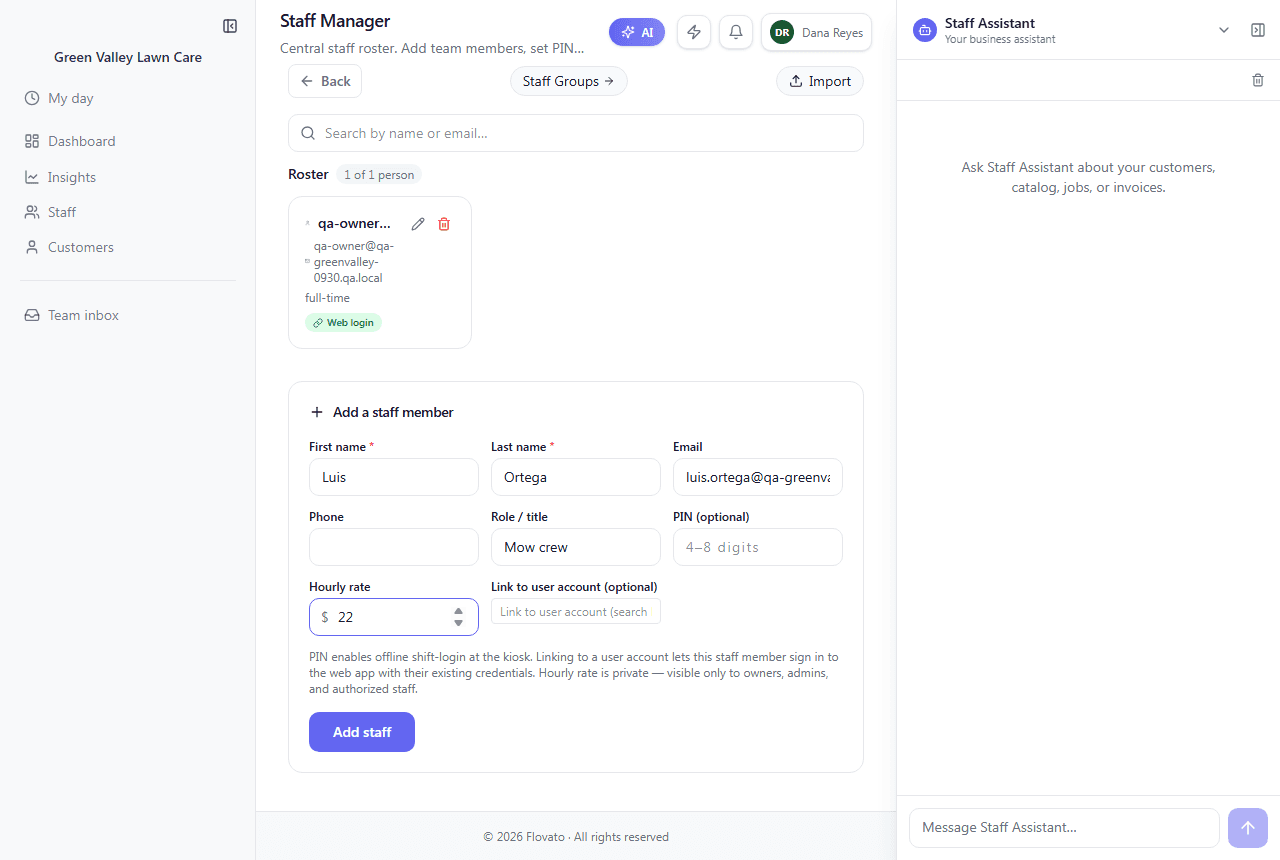
My business → Team → Add a teammate
"Add a teammate" opens the Staff page. Only first and last name are required. Email and phone are for dispatch and the staff directory. Role / title is a label like "Lead Tech". The PIN is a 4–8 digit code for clocking in at a kiosk without a computer login. Hourly rate is private: only owners, admins, and staff you authorize can see it.
Click "Add staff". They're now on your roster and can be scheduled, even if they never sign in.
Green Valley added Luis Ortega, title "Mow crew", at $22.00 an hour. The dashboard went to Staff 2/5, while Users stayed at 1/3. The roster didn't cost a seat.
- 3
Give them a login (or don't)
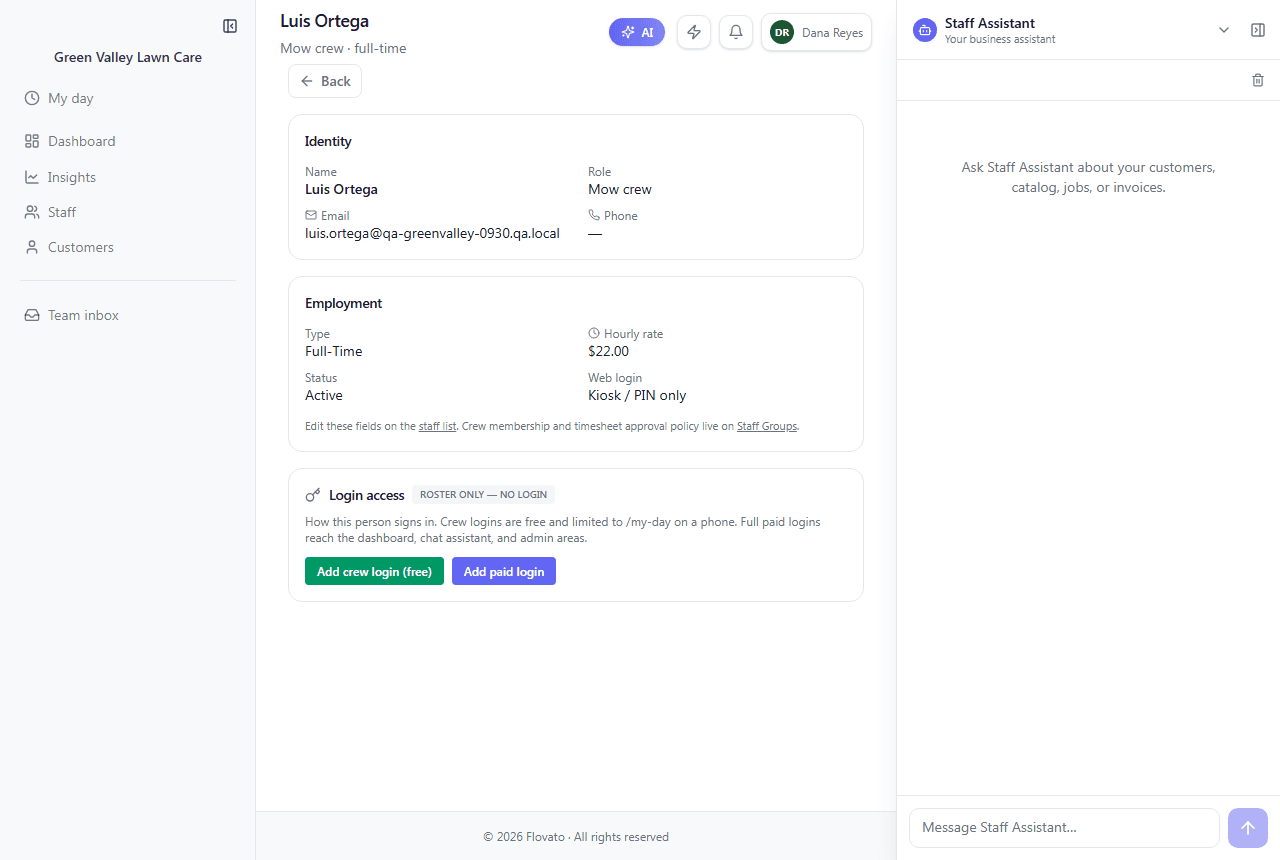
Staff → click their name → Login access
Click the person's name. Under Login access, a roster-only person shows "ROSTER ONLY — NO LOGIN" and two buttons.
"Add crew login (free)" is right for field workers. They get the Field Tech role, which is just My day on their phone, and it doesn't use a paid seat. "Add paid login" gives full access to the dashboard, the Staff Assistant, and admin screens, and counts toward your seats.
Before anything happens, it tells you what it will do: send an invite email to their address, add them to the Field Tech group, and confirm it's free. Click Confirm to send the invite.
No email on file? Add one on the Staff page first. The login is sent as an invitation to that address.
- 4
What happens to bookings when you add a second person
My day
While you're the only person on the roster, every new booking is assigned to you automatically, so solo owners never have to assign anything.
Once a second person joins, that stops on purpose. With two people there's no obvious choice, so new visits wait under "Needs assignment" in the Visit Manager until you say who's going. Your crew sees their assigned visits on My day: time, address, customer phone, gate code and pets, plus Start and Before/After photo buttons.
Ready to try it?
Setting up takes about ten minutes, and the built-in Help assistant is there whenever you get stuck.
Get started